
Canon Printer Misaligned? Quick Fixes for Sharp, Perfect Prints
| Mar 24, 2026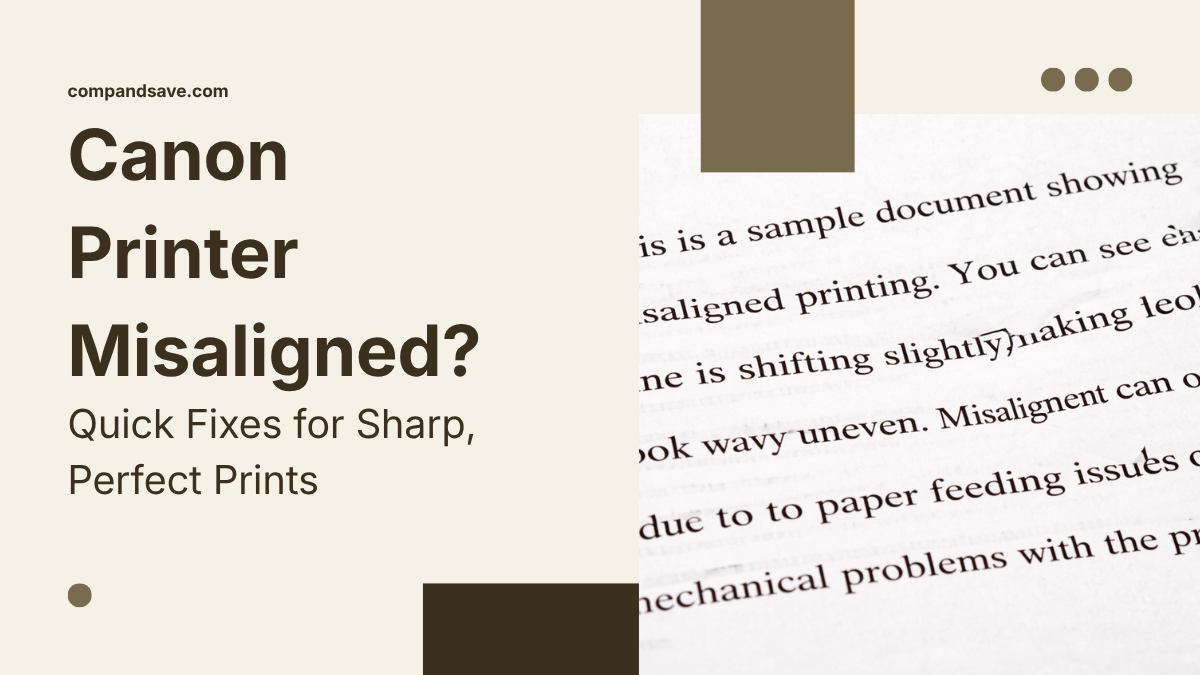
Ever printed a document and noticed the lines don’t match or the text looks off? That’s a clear sign of a Canon printer misaligned issue, which can ruin both documents and photos. This problem is more common than you think, especially with regular use, improper settings, or worn-out components. Whether you’re printing assignments, business documents, or high-resolution images on an ink tank photo printer, alignment is crucial for print quality. Even a small shift can cause blurry text, uneven lines, or ghosting effects. The good news is that most issues can be resolved without professional help. Using proper Canon printer print head alignment and Canon printhead cleaning can restore sharp, accurate prints.
In this article, you’ll learn:
- What a Canon printer misalignment issue really means
- Common causes behind misalignment problems
- Step-by-step methods to fix alignment issues
- Simple printer maintenance tips to prevent it in the future
What Does Misalignment in a Canon Printer Mean?
A Canon printer misaligned issue occurs when ink is placed incorrectly, causing uneven text or broken lines. It happens when Canon printer alignment is off or the print head shifts. Understanding what a printhead is and simple Canon printhead cleaning can fix it. This affects both regular printers and ink tank photo printer models.
1. Misaligned Lines and Text Explained
When your Canon printer is misaligned, the most obvious sign is distorted text and lines.
You may notice:
- Text looks slightly tilted or crooked
- Letters appear blurry or doubled
- Lines don’t connect properly
2. Real Symptoms You Might Notice
A Canon printer misalignment error shows up in different ways. Here are the most common signs:
- Vertical lines are not straight: Lines appear wavy or shifted instead of straight. This often indicates poor Canon printer print head alignment.
- Some text is sharp, others distorted: You may see one line printed perfectly while another looks misaligned. This inconsistency is a clear sign that you need to align the Canon ink cartridge settings.
- Grid lines uneven: Horizontal lines may look fine, but vertical lines don’t match. This is a classic symptom reported by many users.
Common Causes of Canon Printer Misalignment
A Canon printer misaligned issue occurs when prints appear crooked, blurry, or uneven. Causes include print head issues, incorrect settings, paper problems, or environmental issues. Here are the common causes:
1. Print Head Misalignment (Most Common Cause)
Incorrect print head positioning after cartridge changes or heavy use can shift text and lines. Running Canon align print head or manual alignment usually resolves this.
2. Worn-Out or Damaged Print Head
A damaged or old print head causes repeated blurry text, ghosting, or uneven lines. Ink tank photo printer users may need a replacement if cleaning and alignment fail.
3. Non-Genuine Ink or Cartridge Issues
Poor quality third-party ink can prevent proper Canon printer print head alignment and damage the print head. Always use genuine or premium compatible cartridges and align ink cartridge Canon after replacement.
4. Dirty Encoder Strip or Internal Components
Dust or residue on the encoder strip affects print head movement, causing misaligned text or lines. Regular Canon printhead cleaning prevents this.
5. Paper and Loading Issues
Misaligned or poor-quality paper, incorrect size, or wrong type settings can shift prints. Always load paper correctly and check printer settings.
6. Environmental Factors
Humidity and temperature changes expand or shrink paper, leading to misaligned prints. Keeping the printer in a stable environment ensures consistent output.
How to Fix Canon Printer Misaligned Issue (Step-by-Step Guide)
A Canon printer misaligned issue can often be fixed at home with simple steps. Regular Canon printhead cleaning, knowing what is a printhead, and following basic printer maintenance tips help maintain print quality. Below are practical, step-by-step methods to restore clear, evenly printed documents and photos.
1. Quick Fix Checklist (Start Here First)
Before diving into alignment procedures, check these simple fixes:
- Restart printer: Refreshes printer memory and clears minor errors.
- Check ink levels: Low ink can affect print quality. Replace cartridges if needed.
- Reload paper correctly: Ensure paper is aligned with guides and tray.
- Ensure correct print settings: Verify paper type, size, and quality settings in the driver.
2. Automatic Print Head Alignment (Easiest Method)
The easiest way to fix misalignment is using automatic alignment through the printer software:
- When to use it: Ideal for minor misalignment or after replacing cartridges.
- Steps via printer software: Open printer utility > Select Canon align print head > Follow on-screen instructions. The printer prints an alignment pattern and adjusts the head automatically.
- Expected results: Text and lines become sharp, with vertical and horizontal lines aligned.
3. Manual Print Head Alignment (More Accurate Fix)
For persistent misalignment, manual alignment gives precise results:
- Step-by-step pattern selection: Printer prints sheets labeled A–Y. Compare patterns and select the ones with the fewest streaks.
- How to choose the correct pattern: Check for visible lines or streaks. Select patterns where text and grids look sharp.
- When necessary: Use when automatic alignment does not fully fix the Canon printer misalignment issue, especially on ink tank photo printer models producing high-resolution prints.
4. Align Print Head Using Scanner (Best Precision Method)
For the most stubborn Canon printer misaligned cases, scanning the alignment sheet offers high precision:
- How it works: The printer prints an alignment sheet. You scan it on the platen glass; the printer detects misalignment and corrects it.
- Step-by-step process: Print alignment sheet → Place printed sheet face down on scanner → Follow software instructions to scan each page → Printer automatically adjusts the head.
Ideal for: Heavy use, ink tank photo printer models, or complex print jobs requiring perfect alignment.
How to Ensure Canon Printer Print Head Alignment in the Future?
Preventing a Canon printer misaligned issue is easier than fixing it. Most problems come from dirty components, improper handling, or poor maintenance. Regular Canon printhead cleaning, and following printer maintenance tips keep prints sharp.
- Perform Regular Print Head Alignment: Run Canon align print head after replacing cartridges or before large print jobs to maintain correct positioning and prevent misalignment.
- Use Genuine Ink Cartridges: Third-party ink can affect Canon printer alignment and damage the print head. Always use genuine ink and align ink cartridge Canon after replacement.
- Keep Printer Components Clean: Dust or ink residue can shift the print head. Regular Canon printhead cleaning ensures consistent text and line placement.
- Avoid Overloading the Printer: Large continuous print jobs can stress the print head. Split tasks into smaller batches to maintain proper Canon printer alignment, especially on ink tank photo printer models.
- Store Paper Properly: Humidity or uneven paper causes misalignment. Keep paper dry, stable, and aligned in the tray to prevent crooked prints.
Conclusion
A Canon printer misaligned issue can make text and images crooked, blurry, or uneven. Common causes include print head misalignment, worn-out components, non-genuine ink, paper issues, and environmental factors. Both regular printers and ink tank photo printer models are affected.
Most alignment problems are easy to fix. Simple steps like restarting the printer, checking ink levels, reloading paper, running Canon printer print head alignment, or performing manual adjustments restore proper prints. Regular Canon printhead cleaning, knowing what is a printhead, and following printer maintenance tips prevent recurring issues.
Consistent care ensures your printer stays precise, maintaining sharp text and clean images. Following these steps avoids frustrating misalignment and keeps high-quality prints every time.
Take action now: run a Canon printer print head alignment and enjoy flawless prints today!
Frequently Asked Questions:
Are misaligned prints always caused by low ink?
Low ink can affect print quality, but most Canon printer misaligned issues result from print head positioning, paper handling, or alignment errors rather than ink levels.
Will automatic print head alignment fix all misalignment issues?
Automatic alignment using Canon Align print head solves most problems, but stubborn issues may require manual alignment or scanner-based adjustment for precise results.
Does paper type or environment affect alignment?
Paper quality, size, loading, and environmental factors like humidity or temperature changes can shift prints. Even a well-maintained printer may produce misaligned text or images under these conditions.
Related Articles
Canon Printhead Cleaning: Restore Sharp, Vibrant Prints Fast
What Is a Printhead? Troubleshooting Clogs and More! | 2025