
Canon Printer Nozzle Cleaning: How to Clean Built-In Printheads
| Jun 30, 2026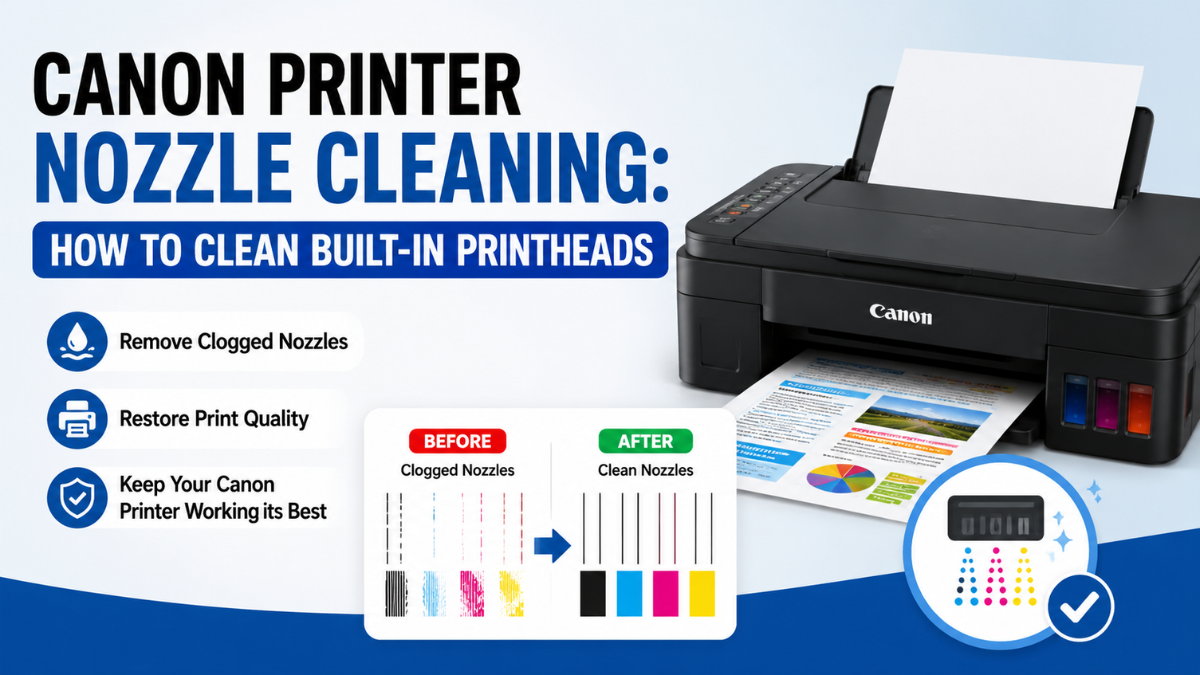
Have you started noticing faded prints, missing colors, streaks, or blurry text? These Canon printer problems are often caused by clogged printhead nozzles, especially if your printer hasn’t been used for a while. Fortunately, Canon printer nozzle cleaning is a built-in maintenance feature designed to restore print quality without requiring you to disassemble your printer.
Whether you own a Canon PIXMA inkjet printer or a Canon MegaTank printer, performing Canon nozzle cleaning regularly can help prevent print quality issues and extend the life of your printer. In this guide, we’ll explain when nozzle cleaning is needed, how to perform it, and tips to keep your printer printing at its best.
What Is Canon Printer Nozzle Cleaning?
Canon printer nozzle cleaning is a maintenance function built into Canon printers that clears dried or clogged ink from the tiny nozzles inside the printhead. When ink dries inside these nozzles, your printer may produce faded colors, broken lines, or missing sections in printed documents.
Instead of manually removing the printhead, Canon printers include an automatic cleaning feature that pushes ink through the nozzles to remove blockages.
Regular Canon nozzle cleaning helps restore normal ink flow and improves overall print quality.
Signs Your Printer Needs Canon Nozzle Cleaning
Before running a cleaning cycle, look for these common symptoms:
- Missing colors during printing
- Horizontal or vertical streaks
- Faded text or images
- Uneven color distribution
- Blank spaces in printed graphics
- Jagged lines or incomplete patterns
These are common symptoms of a Canon printer clogged ink nozzle and usually indicate that the printhead needs cleaning.
Before performing a cleaning cycle, make sure you:
- Check that there is enough ink in every tank or cartridge.
- Load plain paper into the printer.
- Ensure there are no error messages displayed.
- Keep the printer powered on throughout the process.
If your printer has extremely low ink levels, refill or change ink in Canon printer before running the cleaning function.
How to Perform Canon Printer Nozzle Cleaning
Most Canon printers include a built-in cleaning utility that only takes a few minutes.
Method 1: Canon Printer Nozzle Cleaning Using the Printer Menu
- Turn on your Canon printer.
- Open the printer’s Maintenance menu.
- Select Cleaning.
- Choose the printhead or color group if prompted.
- Confirm to start the cleaning cycle.
- Wait until the process finishes.
Once complete, print a nozzle check pattern to see if print quality has improved.
Method 2: Canon Nozzle Cleaning from Windows
If your printer is connected to a Windows computer:
- Open Control Panel.
- Select Devices and Printers.
- Right-click your Canon printer.
- Choose Printing Preferences.
- Open the Maintenance tab.
- Click Cleaning.
- Follow the on-screen instructions.
This built-in Canon printer nozzle cleaning feature works for most Canon printer models.
Method 3: Canon Nozzle Cleaning from macOS
Mac users can also perform cleaning through printer settings.
- Open System Settings.
- Select Printers & Scanners.
- Choose your Canon printer.
- Open the printer utility.
- Select Cleaning.
- Start the cleaning cycle.
After cleaning, print a nozzle check pattern to verify the results.
Print a Nozzle Check Pattern
A nozzle check helps determine whether cleaning was successful.
Look for:
- Continuous lines
- Complete color blocks
- No missing sections
- Sharp black text
If you still notice gaps, your Canon printer nozzle clogged issue may require another cleaning cycle.
When to Use Deep Cleaning
If normal cleaning doesn’t solve the problem after one or two attempts, Canon printers also offer Deep Cleaning.
Deep Cleaning:
- Uses more ink than regular cleaning.
- Removes stubborn dried ink.
- Should only be used when necessary.
Avoid running Deep Cleaning repeatedly because it consumes significantly more ink.
What If Canon Printer Clogged Nozzles Still Don’t Improve?
Sometimes a Canon printer clogged ink nozzle is caused by ink that has dried for an extended period.
If multiple cleaning cycles don’t work:
- Print a few full-color pages to encourage ink flow.
- Leave the printer turned off for several hours before trying again.
- Make sure you’re using genuine or high-quality compatible ink.
- Inspect ink tanks or cartridges for proper installation.
If print quality remains poor, the printhead may require manual cleaning or replacement.
Additional Maintenance Tips
Keeping your printer in good condition reduces the need for frequent cleaning.
Here are some simple maintenance habits:
Print Regularly
Printing one color page every week helps prevent ink from drying inside the nozzles.
Perform Canon Printhead Cleaning Only When Needed
Avoid running Canon printhead cleaning repeatedly. Excessive cleaning wastes ink and may shorten the life of your printhead.
Keep Your Printer Clean
Dust can affect paper feeding and overall printer performance.
Use Quality Ink
Low-quality ink may increase the chance of clogged nozzles.
Calibrate Your Printer
After restoring print quality, it’s a good idea to calibrate Canon printer settings if you notice alignment issues or blurry text. This helps improve print accuracy and sharpness.
How Often Should You Perform Canon Printer Nozzle Cleaning?
There’s no fixed schedule.
Instead, perform Canon printer nozzle cleaning when you notice:
- Missing colors
- Streaks
- Faded prints
- Uneven printing
If you print regularly, you may rarely need to use the cleaning function.
For printers that sit unused for weeks, nozzle cleaning may become necessary more often.
Conclusion
Maintaining your printer doesn’t have to be difficult. Using the built-in Canon printer nozzle cleaning feature whenever you notice faded prints, streaks, or missing colors is one of the easiest ways to restore print quality. Regular Canon nozzle cleaning, combined with good printing habits and routine maintenance, can help prevent clogged printheads and keep your Canon printer performing reliably for years to come.
If cleaning doesn’t resolve the issue, don’t continue running multiple cleaning cycles unnecessarily. Instead, inspect your ink supply, perform a nozzle check, or seek professional assistance if your printer continues to experience Canon printer clogged nozzles condition.
Frequently Asked Questions
1. How often should I perform Canon printer nozzle cleaning?
Only run Canon printer nozzle cleaning when print quality begins to decline. Running unnecessary cleaning cycles uses additional ink.
2. Can Canon nozzle cleaning fix all print quality problems?
Canon nozzle cleaning resolves most issues caused by clogged nozzles. However, if hardware components are damaged or the printhead has reached the end of its lifespan, cleaning alone may not solve the problem.
3. Why does my Canon printer still have missing colors after cleaning?
Persistent missing colors often indicate severe Canon printer clogged nozzles. Try Deep Cleaning once or twice. If the issue continues, the printhead may need manual cleaning or replacement.
4. Does nozzle cleaning use ink?
Yes. Every cleaning cycle uses a small amount of ink to flush dried ink from the printhead. This is why it’s best to perform cleaning only when necessary.
5. Can I prevent a Canon printer clogged ink nozzle?
Yes. Printing regularly, using quality ink, and storing your printer in a suitable environment help reduce the risk of a Canon printer clogged ink nozzle.
Related Articles
Canon Printer Problems And Solutions Guide | CompAndSave
Canon Printhead Cleaning: Restore Sharp, Vibrant Prints Fast
How to Calibrate Canon Printer and Stop Ruining Your Prints
How To Change Ink In Canon Printer: Ink And Toner Guide 2024