
Compatible Chromebook Printers Guide: Print Smart, Print Fast
| Dec 04, 2025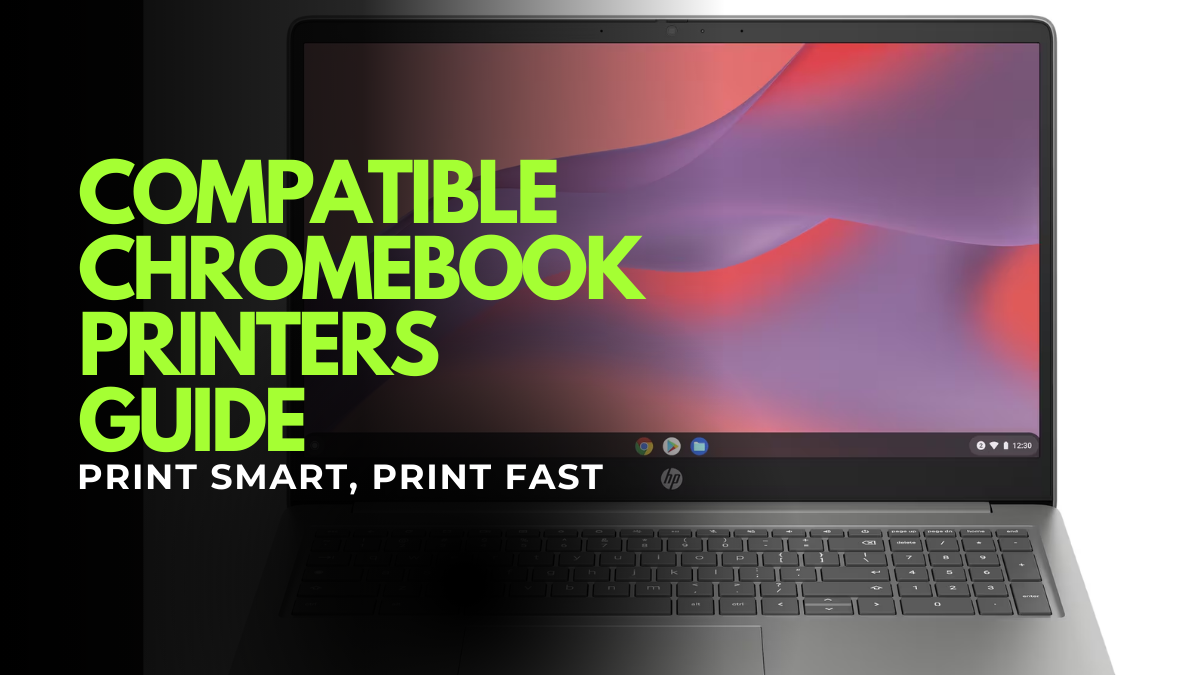
Printing from a Chromebook can be easier than you think, as long as you choose the right printer. Not every printer works seamlessly with ChromeOS, which makes finding compatible Chromebook printers a challenge for many users. Even in 2025, some models still need drivers or apps that Chromebooks don’t support.
The debate of inkjet vs laser adds another layer of confusion, especially when looking for the best printer for Chromebook. Chromebook users also face setup issues, connectivity problems, and slow printing without proper maintenance.
Choosing a printer that work with Chromebook ensures fast, driver-free printing over Wi-Fi or USB. Budget-conscious users often search for cheap printers compatible with Chromebook that still deliver quality results. Knowing which models are reliable can save time and prevent frustration.
Here’s what this article covers:
- How to identify compatible Chromebook printers
- The top printers that work with Chromebook in 2025
- How to connect your Chromebook to a printer
- Step-by-step instructions to print documents and photos
What Makes a Printer Chromebook Compatible?
To work with a Chromebook, a printer must have native ChromeOS support, no drivers or extra apps needed. It should support Wi-Fi, Wi-Fi Direct, USB, or Mopria. Google Cloud Print is discontinued, so a printer that is compatible with Chromebook is necessary for reliable printing.
Features That Ensure Chromebook Compatibility
Key features for ChromeOS-ready printers:
- Wireless printing support
- Mopria certification
- AirPrint-like functionality for driver-free printing
- Mobile printing apps like HP Smart or Brother Mobile Connect
These features make setup simple and printing reliable on any Chromebook.
Printer Types That Work Best With Chromebooks
Printers that perform best with Chromebooks:
- Laser printers (monochrome & color) – fast, low-maintenance
- Inkjet all-in-one printers – versatile for documents and photos
- Supertank models (EcoTank, MegaTank) – high-volume, low-cost printing
- Portable printers – lightweight and mobile
Top Compatible Chromebook Printers 2025
Identifying compatible Chromebook printers ensures smooth wireless printing, scanning, and copying without complicated setup. Yet, choosing a printer for a Chromebook is quite challenging because not all models work seamlessly with ChromeOS. So here, we highlight the best printers for Chromebook users that combine reliability, speed, and affordability.
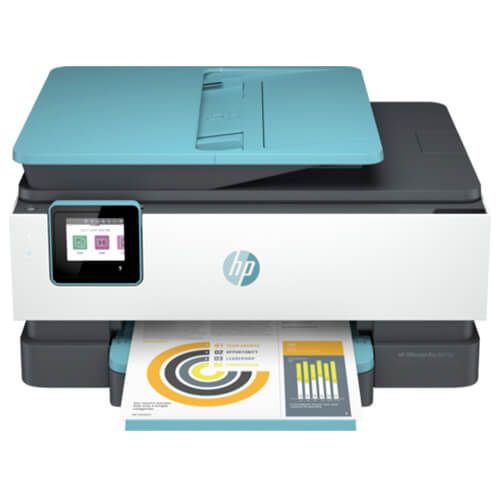
1. HP OfficeJet Pro 8025e
Best for:
Small businesses and home offices – ideal for printing professional-quality documents such as forms, reports, brochures, and presentations.
Key features:
- Fast printing: Up to 20 ppm black, 10 ppm color.
- All-in-one functionality: Print, scan, copy, and fax.
- Auto Duplex & ADF: Two-sided printing and automatic document feeder.
- Mobile & Wireless Printing: Supports Wi-Fi, dual-band Wi-Fi, and HP Smart app.
- HP+ Smart Printing System: Optional system for enhanced security, productivity, and 6 months of Instant Ink included.
- Ink Cartridges Used: HP 910 Ink Cartridges Combo Pack of 4
Why great for Chromebook:
This printer works seamlessly with Chromebooks, offers wireless printing, and supports HP Smart for mobile use, making it reliable for home and office.
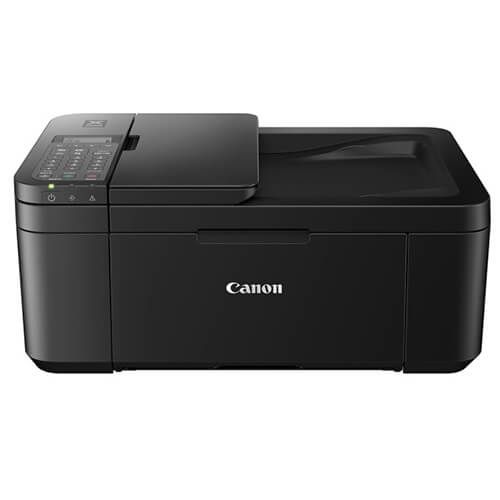
2. Canon PIXMA TR4720 Wireless Color All-in-One Inkjet Printer
Best for:
Home offices or small office setups that need a compact all-in-one printer for documents and photos.
Key features:
- All-in-One Functionality: Print, copy, scan, and fax.
- Auto 2-Side Printing & ADF: 20-sheet automatic document feeder and duplex printing.
- High-Quality Output: Hybrid ink system with pigment-based black and dye-based color for sharp text and vivid photos.
- Easy Setup & Mobile Printing: Works with Canon PRINT Inkjet/SELPHY app.
- Front Paper Tray & Compact Design: 100-sheet tray reduces refills; fits neatly in small spaces.
- Ink Cartridges Used: Canon PG-275 CL-276 XL Ink Cartridges 2-Pack
Why great for Chromebook:
This printer is Chromebook-compatible, supports Wi-Fi and mobile printing, and offers compact all-in-one functionality for documents, photos, and duplex printing.
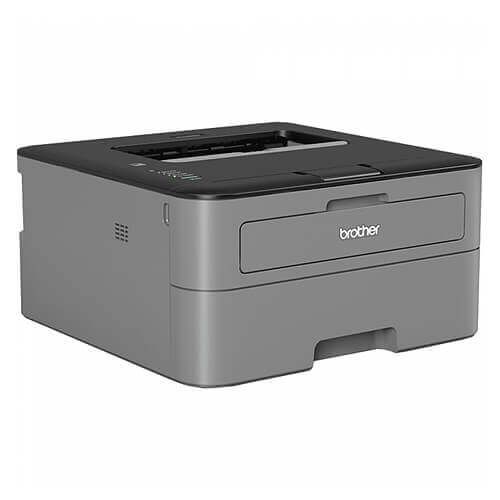
3. Brother HL-2350DW Compact Monochrome Laser Printer
Best for:
Home offices or small office spaces that need a compact and fast monochrome printer.
Key features:
- High-Speed Printing: Up to 32 pages per minute for quick document output.
- Automatic Duplex Printing: Print on both sides effortlessly.
- 250-Sheet Paper Capacity: Reduces the need for frequent refills.
- Wireless & Wired Connectivity: Works with laptops, tablets, smartphones, and desktops.
- Amazon Dash Replenishment Enabled: Automatically reorders toner when running low.
- Toner Cartridges Used: Brother TN-730 Toner Cartridge - Black
Why great for Chromebook:
This printer is Chromebook-compatible via Wi-Fi or USB, offering fast monochrome printing, duplex support, and a compact design—ideal as a cheap printer compatible with Chromebook for home or small offices.
4. Epson EcoTank ET-2850 Multifunction Ink Tank Printer
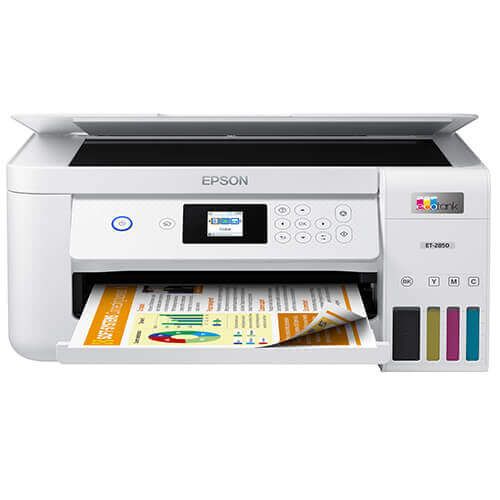
Best for:
Home users or small offices looking for a cost-effective, refillable ink tank printer.
Key features:
- Ultra-High Capacity Ink Tanks: Includes up to 3 years of ink, replacing up to 72 cartridges.
- Automatic Duplex Printing: Print double-sided documents easily.
- Wi-Fi & Wi-Fi Direct Connectivity: Print from laptops, tablets, and mobile devices.
- Epson Smart Panel App: Control print, copy, and scan from your smartphone.
- Compact Design with Heat-Free Technology: Energy-efficient and easy setup with pre-installed printhead.
- Ink Bottles Used: Epson T502 Ink Bottles 4-Pack
Why great for Chromebook:
The Epson EcoTank ET-2850 is a best printer for Chromebook, offering wireless printing and a refillable ink tank for low-cost, high-volume printing. It’s a printer that is compatible with Chromebook and ideal as a cheap printer compatible with Chromebook for documents and photos.
5. HP LaserJet M110w Wireless Black & White Printer
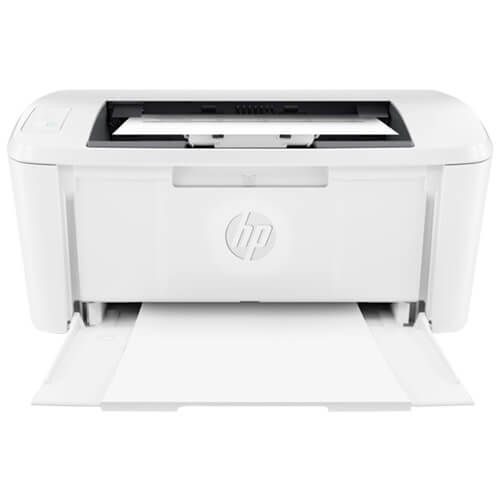
Best for: Home users or small offices needing a compact, fast monochrome laser printer.
Key features:
- Fast Printing: Up to 20 pages per minute (ppm) for efficient document output.
- Wireless & USB Connectivity: Print from laptops, Chromebooks, and mobile devices.
- Compact Design: HP’s smallest laser printer in its class, fits tight spaces.
- HP Smart App Support: Print, scan, and share directly from your phone or tablet.
- Energy Efficient: Auto-On/Auto-Off technology saves power without reducing performance.
- Toner Cartridges Used: HP W1410A Black Toner Cartridges 2-Pack - 141A
Why great for Chromebook:
The HP LaserJet M110w is a best printer for Chromebook, offering wireless printing, mobile connectivity, and easy setup. Its compact design makes it a printer that work with Chromebook and an ideal cheap printer compatible with Chromebook for high-quality monochrome printing.
Top Factors to Consider When Buying Best Printer for Chromebook
Choosing the right printer for a Chromebook depends on speed, cost, connectivity, and features. Compatible Chromebook printers save setup time and print reliably. Whether you need the best printer for Chromebook, these factors matter.
1. Print Speed & Page Yield
- Print speed = pages per minute (ppm)
- Page yield = pages per cartridge or tank
- High-speed, high-yield models reduce wait times and refill frequency is important for printers that work with Chromebook at home or office
2. Laser vs. Inkjet vs. Supertank
- Laser – fast, low-maintenance, good for large volumes
- Inkjet all-in-one – versatile, prints photos and documents
- Supertank (EcoTank, MegaTank) – high-capacity, low cost-per-page
3. Cost-Per-Page
- Cartridges are more expensive long-term
- Supertank/refillable models reduce cost-per-page
- Budget-friendly cheap printers compatible with Chromebook balance upfront and running costs
4. Useful Features
- Automatic Document Feeder (ADF) – scan/copy multiple pages
- Duplex printing – double-sided printing
- Tray size – larger trays reduce refills
How to Connect a Printer to a Chromebook
Connecting compatible Chromebook printers is simple. Most printers work without drivers, whether inkjet vs laser or supertank models. Knowing the connection method ensures your printer that works with Chromebook prints reliably.
How to Add a Wireless Printer to a Chromebook
- Wi-Fi connection: Settings → Printers → Add Printer, select your printer.
- Wi-Fi Direct: Connect directly to the printer’s Wi-Fi signal.
- Printer apps: Use HP Smart, Brother Mobile Connect, or Epson iPrint for setup and mobile printing.
How to Add a USB Printer to Chromebook
- Connect with a USB-C or USB-A adapter.
- Settings → Printers → Add Printer. Chromebook should detect it automatically.
Troubleshooting Chromebook Printer Setup
- Printer not showing up: Restart Chromebook and printer, check Wi-Fi.
- Wi-Fi issues: Reconnect or use Wi-Fi Direct.
- Mopria errors: Ensure printer supports Mopria and ChromeOS is updated.
How to Print From a Chromebook
Printing from a Chromebook is easy with compatible Chromebook printers. Most inkjet, laser, or supertank models work without drivers. Following simple steps ensures the best printer for Chromebook produces high-quality documents, photos, or double-sided prints while keeping printer maintenance tips simple.
A. Step-By-Step: How to Print a Document
- Open the document or webpage.
- Press Ctrl + P or click Print.
- Select your compatible Chromebook printer from the list.
- Adjust settings like pages, copies, and color.
- Click Print.
B. How to Print Photos From a Chromebook
- Use a photo editor or Chrome browser.
- Select a printer that works with Chromebook with color support.
- Choose photo size and paper type for best results.
- Click Print.
C. How to Print Double-Sided
- Open print dialog.
- Select Duplex / Two-Sided Printing if available.
- If your printer lacks duplex, manually flip pages.
Conclusion
Finding the right compatible Chromebook printers is easier than ever with modern wireless and all-in-one options. The best printer for Chromebook depends on your needs: fast printing, duplex capability, or cost-efficient ink. From cheap printers compatible with Chromebook to high-capacity supertank models, there’s a solution for home, office, or portable use. Knowing printer maintenance tips ensures smooth performance and longevity. Step-by-step setup and mobile connectivity make printing hassle-free. Understanding features like paper capacity, duplex, and print speed helps you choose wisely. Reliable Chromebook-compatible printers save time and reduce frustration. Seamless integration with apps and Wi-Fi ensures productivity. Overall, the right printer improves convenience and efficiency.
Upgrade your Chromebook printing today and explore the top compatible printers now!
Frequently Asked Questions:
1. Can I use any printer with my Chromebook?
Not all printers are fully compatible with Chromebooks. Only printers that work with Chromebook through Wi-Fi, USB, or supported mobile printing apps can provide seamless printing, scanning, and duplex functionality without errors or connectivity issues.
2. Do I need to install drivers to print from a Chromebook?
Most compatible Chromebook printers work natively with ChromeOS, meaning you don’t need traditional drivers. This makes setup quick and allows printing directly from web apps, cloud storage, or mobile devices without extra software.
3. Are laser printers always better than inkjet for Chromebooks?
Choosing the best printer for Chromebook depends on your printing habits, not just the technology. While laser printers excel at fast monochrome printing, inkjet and supertank models handle color, photos, and low-volume prints efficiently at lower costs.
4. Do I have to buy expensive printers for reliable performance?
You don’t need to spend a fortune to get a dependable printer. Many cheap printers compatible with Chromebook offer high-quality output, wireless connectivity, duplex printing, and mobile app support, making them perfect for home or small office use.
5. Can Chromebooks handle duplex or photo printing?
Yes, modern printers that are compatible with Chromebook support advanced features such as double-sided printing, borderless photo printing, and mobile app control. This ensures you can handle documents, photos, and presentations directly from your Chromebook without hassle.
Related Articles
Inkjet vs Laser: Difference Between Inkjet and Laser Printers Guide
Best Printer Without Subscription For Home & Office | 2025