
Drum for HP Printer Guide: Stop Print Issues & Improve Quality
| Apr 25, 2026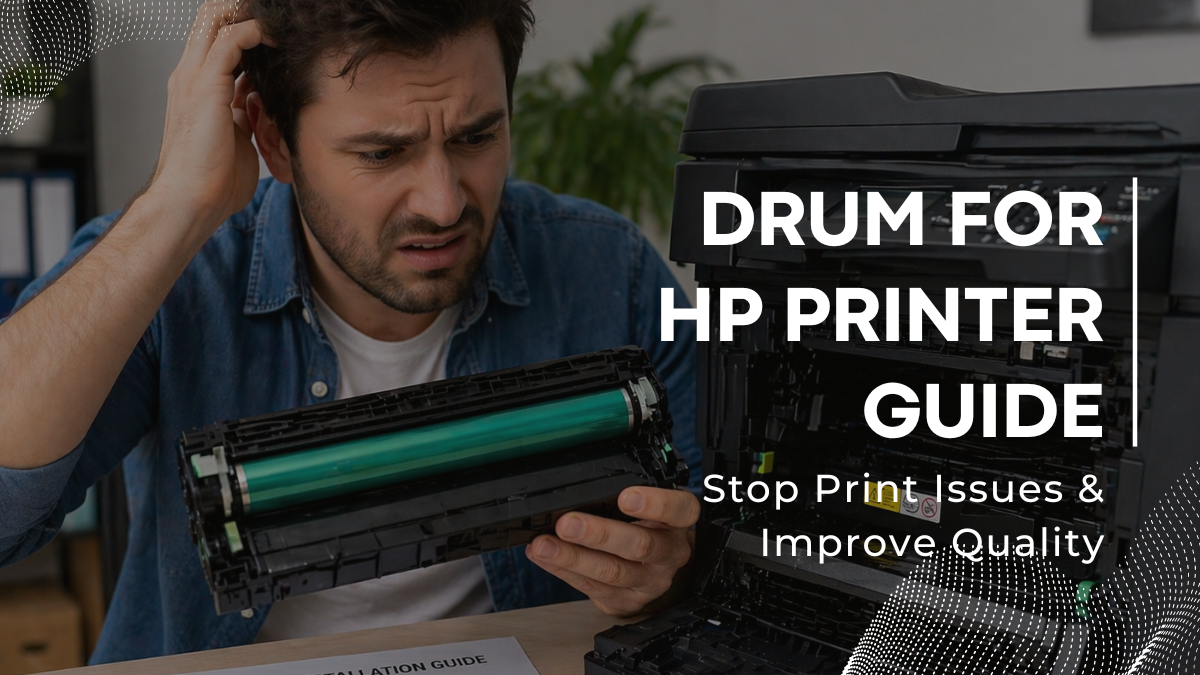
Printing issues can be frustrating, especially when your documents start looking faded, streaky, or unprofessional without any clear reason. Many users assume the toner is the problem, but in most cases, the real cause is the drum for HP printer. This small yet powerful component, known as the HP drum, is responsible for transferring toner onto paper with precision. When it wears out, even a full cartridge won’t fix poor print quality. Understanding how the HP laser printer drum works can save time, money, and unnecessary replacements. It also helps avoid common errors and ensures a smooth printer set up for daily use. Whether you print occasionally at home or regularly in an office, maintaining the HP drum unit is essential for consistent results. Ignoring early signs can lead to issues like faded prints, repeated marks, or even system warnings.
In this article, you will learn:
- What a drum for HP printer is and how it works
- Why the HP imaging drum is important for print quality
- Signs that indicate you need a replacement
- Step-by-step guidance to replace drum on printer
What Is an HP Imaging Drum & What Does It Do?
The HP drum creates the image that will be printed. It receives an electrical charge, forms the text or image pattern, and attracts toner to that pattern. It transfers this toner onto paper. The HP drum unit repeats this process for every page you print, which is why its condition directly affects output quality.
How the HP Laser Printer Drum Works Inside the Printer
The HP laser drum works in a simple cycle. First, the printer sends print data. Then the HP drum forms the image using static charge. Toner sticks to this image. Finally, it rolls the toner onto paper. This cycle repeats for every page, so any damage in the HP laserjet printer drum affects all prints.
Why HP Drum Is Important for Print Quality
The HP drum ensures clean and sharp output. A good drum produces clear text and even toner distribution. A worn HP laserjet printer drum leads to faded text, streaks, and repeating marks. This is why replacing the HP drum unit on time is necessary for consistent printing results.
Why You Need to Replace the Drum for HP Printer
Users usually try to replace the imaging drum after print quality drops, but a worn drum affects output earlier. The HP imaging drum controls toner transfer, and damage causes print defects. Even after a printer is set up properly, a faulty drum reduces quality. Errors like HP printer says cartridge incompatible or issues after a Firmware update may also occur due to drum wear.
1. Impact of Worn HP Drum on Print Quality
A worn HP imaging drum causes faded text, streaks, and repeated marks. The drum for the HP printer loses its ability to transfer toner evenly. The HP laser printer drum produces inconsistent results, making documents look unclear and unprofessional.
2. Risks of Not Replacing Drum on Time
Delaying replacement of the drum unit leads to persistent print defects that toner changes cannot fix. The HP laserjet printer drum becomes less reliable, increasing wasted prints and reducing printer performance. The drum should be replaced as soon as warnings appear.
3. Effect of Bad HP Drum on Documents and Reports
A failing HP imaging drum reduces clarity in invoices, reports, and office documents. The drum for the HP printer causes uneven text and poor print consistency. The HP laser printer drum directly affects how professional your documents look, making timely replacement necessary.
Signs You Need to Replace Your HP Imaging Drum
The drum for the HP printer shows early warning signs before failure. The HP drum signals issues through messages, indicators, and print defects. Even after a printer is set up, these signs can appear. Alerts like HP printer says cartridge incompatible or changes after a printer Firmware update may indicate drum problems.
1. Printer Warning Messages
The HP imaging drum shows alerts like “Imaging Drum Low” or “Very Low.” These messages mean the drum is near the end of life. The HP drum unit triggers these warnings before print failure occurs.
2. Error Indicators on Control Panel
The control panel may show blinking lights or error codes. The HP laser printer drum uses these signals to indicate performance issues. The drum for the HP printers is no longer functioning at full capacity when these appear.
3. Visible Print Issues from HP Drum Wear
A worn HP drum causes clear defects. The drum for the HP printer may produce streaks, smudges, or faded text. Repeating marks at fixed intervals like 26 mm or 94 mm are also common. These are direct signs of HP drum wear.
4. When Print Quality Becomes Unacceptable
When the HP drum is fully worn, prints become unclear or uneven. The drum for the HP printer can no longer transfer toner properly. At this stage, replacing the HP drum unit is required to restore normal printing.
Step-by-Step Guide: How to Replace Drum for HP Printer (DIY Method)
Users often try to replace a drum on a printer after print issues appear, but replacing the drum for the HP printer is a simple process. The HP drum is designed for quick installation. Even after a proper HP printer set up, the drum still needs replacement after its life ends. Here is complete process:
1. Before You Start
Check if the HP imaging drum needs replacement before starting.
- Look for faded prints, streaks, or warning messages
- Turn off the printer if needed
- Avoid touching the green roller
- Handle the HP drum unit carefully to prevent damage
2. Open the Printer Properly
Accessing the HP laser printer drum is simple.
- Lift the scanner assembly
- Open the top cover slowly
- Locate the drum for HP printer area with toner cartridge inside
Open gently to avoid damaging the HP imaging drum.
3. Remove Old Drum and Toner
Remove the worn HP drum step by step.
- Take out the toner cartridge first
- Pull out the old HP drum using its handle
- Slide it out along the internal tracks
Handle the HP laserjet printer drum carefully to avoid toner spill.
4. Install New HP Drum
Install the new HP drum correctly.
- Unpack the drum carefully
- Do not touch the green roller
- Align the drum with the tracks
- Push it in until it clicks
The HP drum unit must sit firmly in place for proper printing.
5. Reassemble and Test
Complete the process and verify output.
- Reinstall the toner cartridge
- Close the printer cover and scanner assembly
- Run a test print
If installed correctly, the HP drum will restore normal print quality immediately.
Common Mistakes to Avoid When Replacing HP Imaging Drum
Users often try to replace a drum on the printer quickly, but small mistakes can affect output. The drum must be handled carefully because it directly impacts print quality. The HP drum depends on correct installation and clean handling. Even after proper installation of an HP printer, wrong steps can still cause poor results. In some cases, errors like the printer says cartridge incompatible or issues after a Firmware update may also appear due to improper drum handling.
1. Touching the Drum Roller
Do not touch the green roller on the HP imaging drum. It damages the surface and causes streaks or faded prints. The drum for the HP printer loses accuracy when the roller is contaminated. The HP laser printer must remain clean for proper toner transfer.
2. Incorrect Installation
Wrong placement of the drum leads to poor printing or no output. The drum for the HP printer must click into place correctly. If not aligned, the HP laserjet printer drum will not function properly.
3. Using Incompatible Drum Models
An incompatible HP drum unit can cause errors or print failure. The HP drum must match the printer model. Using the wrong part affects performance of the drum for HP printer and may trigger system issues.
4. Skipping Test Print
A test print confirms correct installation. Without it, issues may go unnoticed. The drum for HP printer should always be tested after setup. The HP laser printer drum may need reseating if defects appear.
Conclusion
The drum for HP printer plays a key role in maintaining clear and consistent print quality. When the HP imaging drum becomes worn, issues like fading, streaks, and uneven prints appear. Replacing it at the right time helps restore sharp output and prevents repeated printing problems. A proper replacement also ensures your printer continues working smoothly after a printer set up or routine use. The HP laser printer drum should always match your printer model for best results. Ignoring warnings or delays can reduce overall performance, even after an HP printer Firmware update. Regular checks help avoid unexpected failures. Understanding how the HP laserjet printer drum works makes maintenance easier for beginners and office users.
If your prints look unclear, it may be time to act, check and replace your drum for better results today.
Frequently Asked Questions
Do I need to replace the toner or drum for print issues?
Print quality problems are not always caused by toner. The drum for HP printer plays a key role in transferring toner to paper. Even with a new cartridge, a worn HP drum can still cause streaks, fading, or uneven prints. The HP drum should be checked when print quality drops.
How long does an HP imaging drum last?
The HP drum has a limited lifespan based on usage and page count. The drum for the HP printer gradually wears out with printing. The HP drum unit should be replaced when warning messages appear or when print defects start showing consistently.
Can any drum work in an HP printer?
The HP laserjet printer drum must match the specific printer model. A compatible imaging drum ensures proper installation and print quality. Using the correct drum for HP printer helps avoid errors and maintains smooth performance.
Related Articles
When to Replace Drum on Printer: Signs & Tips You Should Know
HP Printer Set Up: Step-by-Step Guide for Easy Installation
HP Printer Says Cartridge Incompatible? Try These Real Fixes
HP Printer Firmware Update: A Guide for Smooth & Safe Upgrades