
Epson Chip Resetter: What It Is, How It Works & Best Alternatives
| May 22, 2026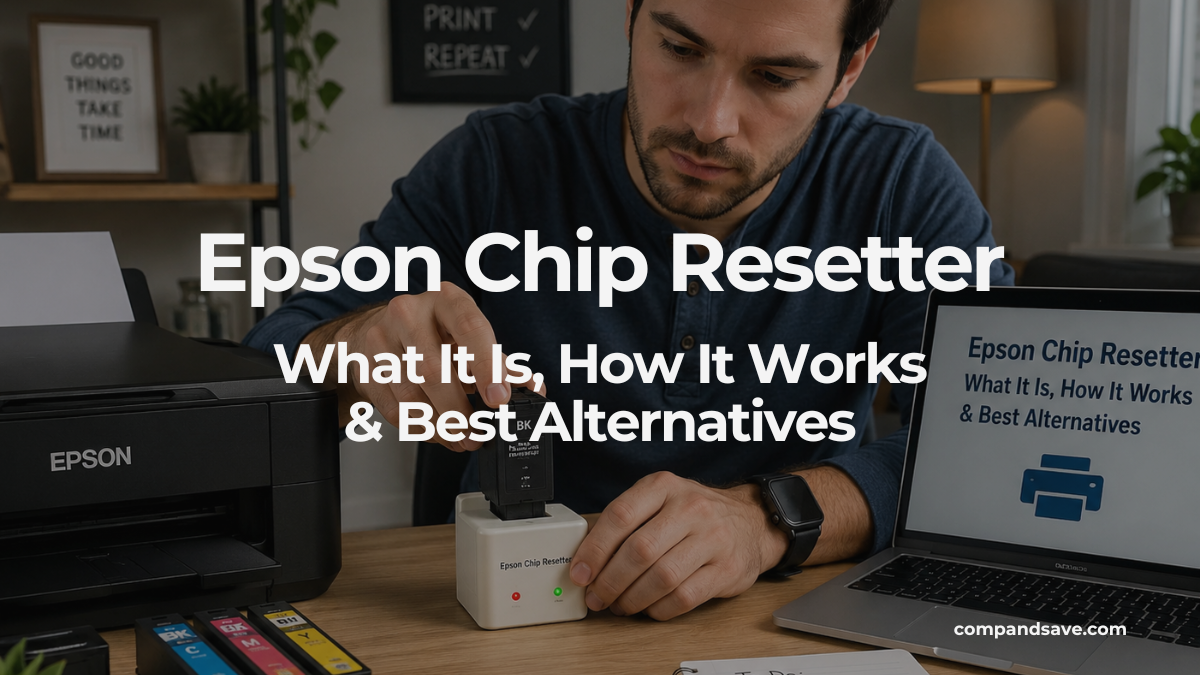
If you’ve ever struggled while trying to change ink in Epson printer, you already know how frustrating cartridge errors can be. One moment your printer is working fine, and the next it suddenly refuses to print—even when there’s still ink left.
Many Epson users encounter errors such as cartridge recognition or situations where the printer is not printing at all, even after replacing or refilling cartridges. This is where tools like the Epson chip resetter come into the picture.
In this guide, we’ll break down what an Epson ink cartridge reset tool is, how it works, its limitations, and the best alternatives to consider before spending money on a reset tool or replacement cartridge.
What Is an Epson Chip Resetter?
An Epson chip resetter is a small electronic device designed to reset the microchip found on certain Epson ink cartridges. This chip stores cartridge-related information, including estimated ink levels and cartridge status. The chip tracks ink levels, and once it thinks the ink is empty, the printer may stop working—even if you’ve refilled the cartridge.
In simple terms, a chip resetter for Epson cartridges “tricks” the cartridge chip into thinking it is full again so the printer can continue printing normally. It is used to:
- Reset cartridge ink level indicators
- Restore cartridge recognition in some cases
- Allow refillable or remanufactured cartridges to continue working
- Help reduce cartridge replacement costs
These tools are commonly used in home printing setups, small offices, or by DIY users who prefer refilling cartridges instead of buying new ones.
You may also hear it referred to as an Epson ink cartridge reset tool, Epson ink cartridge resetter, or even an Epson ink resetter, depending on the brand or seller.
How Does an Epson Ink Resetter Work?
Most Epson cartridges contain a small integrated chip that communicates with the printer. The chip tells the printer things like:
- Whether the cartridge is installed correctly
- Cartridge authenticity or compatibility
- Estimated remaining ink level
- Cartridge usage status
When the printer determines that the cartridge is “empty,” the chip may lock printing functionality even if some ink remains.
The Epson chip resetter works by physically connecting to the metal contacts on the cartridge chip. Once connected, it sends a reset signal that restores the chip’s ink level status back to full.
Here’s a simple breakdown:
- You place the cartridge on the resetter pins
- The device aligns with the chip contacts
- A small LED light usually flashes to confirm connection
- The chip is reset to “full” status
After this process, your printer should recognize the cartridge again and allow printing.
This is especially useful when dealing with issues like Epson printer not recognizing ink cartridges, even after refilling ink.
Some users also search about chip resetter for Epson cartridges when looking for compatible tools, but it’s important to match the correct model for your printer series.
Why Do You Need to Reset an Epson Ink Cartridge?
Epson cartridges are designed with built-in chips that monitor ink usage digitally—not physically. This means even if ink is still available inside the cartridge, the chip might still report it as empty.
This leads to common problems such as:
- Printer stops printing suddenly
- Incorrect “low ink” warnings
- Cartridge not detected errors
- Printing errors even after refilling
In these cases, an Epson ink cartridge reset tool can restore functionality.
Without resetting, your printer may behave as if the cartridge is empty, resulting in wasted ink and unnecessary replacements.
How Do You Use the Epson Chip Resetter?
Using an Epson chip resetter is generally simple and beginner-friendly. While designs may vary, the basic steps remain similar.
Typical Reset Process
Although instructions vary by model, the process usually looks like this:
1. Remove the Cartridge
Take the Epson cartridge out of the printer carefully.
2. Align the Chip
Match the cartridge chip contacts with the resetter pins. Proper alignment is important for successful communication.
3. Press and Hold
Gently press the cartridge onto the resetter for several seconds. Many resetters have an LED light indicator.
- Green light = reset successful
- Red or blinking light = reset failed or alignment issue
4. Reinstall the Cartridge
Place the cartridge back into the printer and check if the error disappears.
If done correctly, your printer should now recognize the cartridge again.
This process is often used by users trying to fix issues like how to reset Epson ink cartridge chip without resetter, although doing it manually is usually limited or not possible for most modern cartridges.
When Should You Use an Epson Ink Cartridge Reset Tool?
An Epson ink cartridge resetter is useful, but it’s not something you should use all the time. You may consider using one if:
Your Cartridge Is Not Recognized
Sometimes the printer suddenly stops recognizing a cartridge due to a chip communication issue.
You Refill Your Own Cartridges
Users who refill cartridges often use resetters to refresh cartridge status after adding ink.
You Use Compatible or Remanufactured Cartridges
Third-party cartridges occasionally trigger recognition problems. A resetter may help restore functionality depending on the cartridge type.
Ink Level Errors Appear Too Early
Some cartridges stop working based on chip estimates rather than actual ink remaining.
However, a chip resetter works best only when the cartridge chip itself is still functional. If your cartridge is physically damaged or completely worn out, a resetter will not fix the issue.
Epson Ink Cartridge Resetter (Common Issues You Should Know)
While tools like the Epson ink resetter can be helpful, they also come with limitations:
- Not all cartridges are resettable
- Some newer Epson models block chip resets
- Compatibility issues may occur
- Incorrect use may cause recognition errors
If your printer frequently shows errors, it may be worth exploring other solutions instead of relying only on reset tools.
Situations Where a Chip Resetter May Not Work
Although useful, Epson chip resetters are not magic fixes. Here are common situations where they may fail:
1. Cartridge Chip Is Damaged
If the chip is scratched, physically damaged, or defective, resetting may not help.
2. Firmware Updates Block Compatibility
Some Epson printer firmware updates improve cartridge detection systems and may reject reset cartridges or certain third-party chips.
3. Cartridge Is Truly Faulty
If internal cartridge components are clogged or damaged, resetting the chip will not restore printing quality.
4. Wrong Resetter Model
Not all Epson resetters are universal. Some only work for specific cartridge series or printer models.
Always verify compatibility before buying a reset tool.
Best Alternatives to Epson Chip Resetter
If you’re hesitant about using an Epson ink cartridge reset tool, there are several safer and more practical alternatives you can try first.
1. Use Compatible or Remanufactured Cartridges
These cartridges often come pre-reset and ready to use, saving you time and effort.
2. Replace the Cartridge Chip (Advanced Users)
Some cartridges allow chip replacement instead of resetting.
3. Printer Software Reset (Model Dependent)
Some Epson models allow ink level resets through software utilities.
4. Clean Cartridge Contacts
Dirt or dust can cause recognition issues similar to chip errors.
5. Restart or Reinstall Printer Drivers
Sometimes, the issue is software-related, not hardware.
These alternatives are often safer and can help resolve issues without needing a physical reset tool.
How to Prevent Epson Cartridge Recognition Problems
While not every issue is avoidable, these habits can reduce cartridge errors:
- Avoid removing cartridges unnecessarily
- Store cartridges properly in cool, dry places
- Use compatible cartridges from reliable suppliers
- Keep printer firmware considerations in mind
- Install cartridges carefully and securely
- Avoid touching chip contacts directly
Routine printer maintenance can also help reduce interruptions.
Final Thoughts
An Epson chip resetter can be a useful tool for users who frequently refill cartridges and want to extend their printer’s usability. It helps solve common issues like false ink warnings and cartridge detection errors.
However, it’s not always the only or best solution. Depending on your setup, an Epson ink cartridge reset tool or alternative methods like compatible cartridges or cleaning fixes may be more practical and cost-effective.
Before purchasing any Epson ink cartridge resetter, it’s worth understanding your printer model and evaluating whether a simpler fix might already solve the problem.
Frequently Asked Questions
1. What is an Epson chip resetter used for?
An Epson chip resetter is used to reset ink cartridge chips so the printer can recognize them as full again after refilling.
2. Is it safe to use an Epson ink cartridge reset tool?
Yes, it is generally safe when used correctly. However, improper use or incompatible cartridges may cause recognition issues.
3. Can I fix cartridge issues without an Epson ink cartridge resetter?
Yes. Some users fix issues by cleaning contacts, restarting printers, or using compatible cartridges instead of a reset tool.
4. Why does my Epson printer not recognize ink cartridges even after refilling?
This usually happens because the cartridge chip still reads “empty,” which may require an Epson ink resetter or alternative troubleshooting steps.
Related Articles
How to Change Ink in Epson Printer: Step-by-Step Guide
Epson Printer Not Recognizing Ink Cartridges? Try Easy Fixes First
Why Is My Epson Printer Not Printing Even Though There’s Ink?
How to Reset Epson Ink Cartridge Chip Without Resetter: Easy Fixes That Actually Work