
Epson Printer Not Recognizing Ink Cartridges? Try Easy Fixes First
| May 09, 2026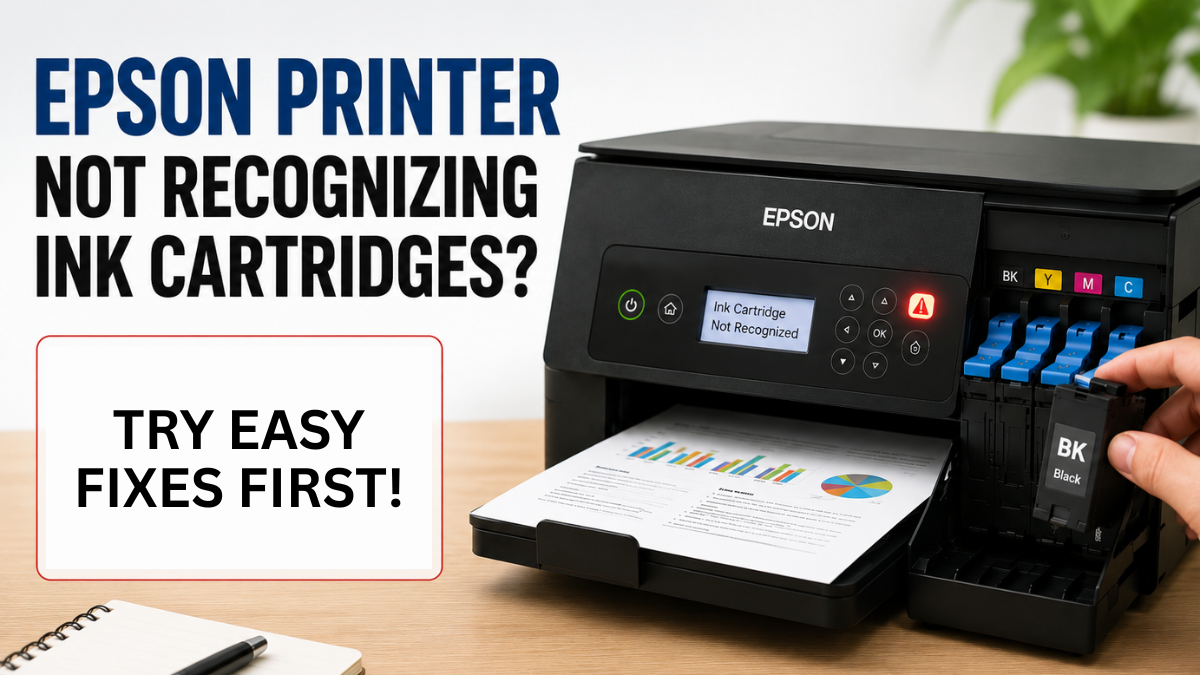
There’s nothing more frustrating than replacing an ink cartridge, only to see your printer refuse to recognize it. If your Epson printer suddenly displays a cartridge error, don’t assume the cartridge is defective right away. In many cases, the problem is caused by a simple issue that you can fix at home in just a few minutes.
If your Epson printer not recognizing ink cartridges suddenly shows as an error right after you install new ink, then you are not alone. Many users encounter this issue at home or in small offices, especially after replacing cartridges. You may even see alerts like override Epson ink cartridge not recognized followed by your printer refusing to print anything.
If the Epson ink cartridge not recognized error appears, this guide will walk you through the most common causes and simple fixes. Whether you use your printer for school, business, or everyday home printing, you’ll learn easy, step-by-step solutions to get it working again.
Why Your Epson Printer Not Recognizing Ink Cartridges
When your Epson printer not recognizing ink cartridges issue appears, it usually means the printer cannot properly read the cartridge chip or detect the ink system.
Here are the most common reasons:
1. The Cartridge Is Not Installed Properly
Sometimes the cartridge clicks into place but is not fully seated. Even a slight misalignment can trigger an error.
2. Protective Tape Was Not Removed
New cartridges often have a small strip of plastic or sealing tape. If it remains attached, the cartridge may not work.
3. Dirty Cartridge Contacts
Ink residue, dust, or fingerprints on the cartridge chip can prevent the printer from reading it correctly.
4. Firmware or Software Conflicts
A recent firmware update may affect cartridge recognition, especially with compatible or remanufactured cartridges.
5. Wrong Cartridge Model
Even if the cartridge looks similar, using the wrong model number can trigger a recognition error.
In some cases, users also see messages like Epson ink cartridge not recognized, which confirms a communication issue between the cartridge and printer.
You might also experience situations where your Epson cannot recognize ink cartridge starts happening right after an update or cartridge replacement.
Quick Checks Before Fixing the Problem
Before doing anything advanced, try these simple steps:
1. Confirm the Cartridge Is Compatible
Check the cartridge packaging and make sure it matches your exact printer model. Even cartridges from the same brand may not work across different printers.
2. Restart Your Printer
Sometimes a quick restart clears temporary communication errors.
Try this:
- Turn off the printer
- Unplug it from the power source
- Wait about 60 seconds
- Plug it back in and turn it on again
This simple reset often solves minor cartridge detection problems.
2. Recheck Cartridge Installation
Open the printer and make sure each cartridge is fully clicked into place.
3. Look for Error Messages
If your Epson printer cannot recognize ink cartridge, it will usually display a warning on the screen or flashing lights.
Easy Fixes for Epson Ink Cartridge Not Recognized
If your Epson printer not recognizing ink cartridges issue continues, try the following solutions one by one.
Fix 1: Remove and Reinstall Cartridges
Sometimes, the cartridge appears installed correctly but is not fully locked in position. This is the simplest and most effective fix.
Steps:
- Open the printer cover
- Remove all ink cartridges
- Wait a few seconds
- Reinsert it firmly until it clicks into place
After reinstalling, close the cover and wait for the printer to check the cartridge.
Many users fix the Epson printer does not recognize ink cartridge issues just by reseating the cartridges properly.
Fix 2: Clean the Cartridge Chip
The small gold or copper-colored chip on the cartridge helps the printer identify it. Dust or ink buildup can block the chip connection. If the chip is dirty, the printer may fail to read it.
How to clean safely:
- Remove the cartridge
- Use a soft, dry lint-free cloth
- Gently wipe the gold chip area
- Avoid touching the chip with your fingers
This helps resolve cases where the Epson ink cartridge not recognized error keeps appearing repeatedly.
Fix 3: Check for Protective Tape
New cartridges often include protective tape over the ink outlet or chip area. If you recently did a change ink in Epson printer, check that all protective seals were removed. Even a small strip of tape can trigger Epson cannot recognize ink cartridge errors and the cartridge may not function. Double-check the cartridge before reinstalling it.
Fix 4: Try the Cartridge Again After a Printer Reset
Sometimes the printer itself needs to refresh its cartridge memory recognize the cartridges as new.
Try this method:
- Turn off the printer
- Remove all cartridges
- Wait about one minute
- Reinstall the cartridges
- Turn the printer back on
This helps fix temporary issues if the Epson printer cannot recognize ink cartridge.
If You’re Using Compatible or Remanufactured Cartridges
Many home users and small offices use compatible cartridges to save money. Usually they work well, but sometimes printers can be more sensitive to them.
If your Epson printer won’t recognize ink cartridges especially the compatible ones:
- Remove and reinstall it once more
- Clean the chip carefully
- Make sure it’s made for your exact printer model
- Test another compatible cartridge if available
In some cases, the cartridge itself may simply be faulty. That does not always mean all compatible cartridges are bad—just that one may not be reading correctly.
Could a Firmware Update Be Causing the Problem?
Sometimes, yes. A firmware update is software installed inside the printer. It can improve performance, but it may also change how the printer checks cartridges.
If your printer stopped recognizing cartridges immediately after an update, the firmware may be related.
Signs this may be the cause include:
- The cartridges worked before the update
- Multiple cartridges suddenly show errors
- Original cartridges work, but compatible ones do not
If this happened recently, you may want to check whether a firmware update was installed automatically which causes the Epson printer won’t recognize ink cartridges.
What to Do When Epson Printer Does Not Recognize Ink Cartridge After Troubleshooting
If your Epson printer not recognizing ink cartridges problem still persists, here are a few more things to try.
Test Another Cartridge
If another cartridge works, the original cartridge may be defective.
Update or Reinstall the Printer Driver
On your computer, reinstalling the printer driver can sometimes fix communication issues.
Check the Cartridge Slot
Look inside the printer for dust, debris, or anything blocking proper contact.
Use an Original Epson Cartridge
Testing with an original Epson cartridge can help confirm whether the issue is with the cartridge or the printer itself.
Common Situations Users Experience
Many users report similar issues such as:
- Epson printer not recognizing ink cartridges after replacing ink
- Epson printer does not recognize ink cartridge after update
- Epson printer red light blinking or flashing lights with no printing response
- Sudden stop after installing new ink
These are all variations of the same issue: the printer cannot properly read the cartridge.
How to Prevent Cartridge Recognition Problems
Once your printer is working again, follow these tips:
- Always install cartridges carefully
- Avoid touching the chip area
- Store ink properly
- Use compatible cartridges designed for your model
- Restart printer after changing ink
- Avoid unnecessary firmware updates
These habits reduce the chances of facing Epson ink cartridge not recognizederror again in the future.
Why This Issue Happens So Often
The Epson printer not recognizing ink cartridges issue is common because modern printers rely heavily on chip-based communication. If even a small signal mismatch happens, the printer may block printing entirely.
That’s why many users suddenly see Epson ink cartridge not recognized errors even when the ink is brand new.
The system is sensitive but the fixes are usually simple.
When It Might Be Time to Get Help
If your printer still does not recognize cartridges after trying everything above and makes your Epson printer not printing, the issue may be with the printer hardware itself.
Possible causes include:
- Damaged cartridge contacts inside the printer
- Internal sensor problems
- Mainboard communication issues
At that point, professional repair may be worth considering especially if the printer is relatively new or frequently used.
Final Thoughts
If your Epson printer not recognizing ink cartridges, don’t rush to replace your ink. Most of the time, the issue is simple and fixable within minutes.
Whether you’re dealing with an Epson ink cartridge not recognized message or your printer suddenly stops printing, the solutions in this guide are designed to help you fix the problem quickly and safely.
For home users and small offices, knowing how to troubleshoot cartridge errors can save both time and money. And when your printer starts cooperating again, you’ll be glad you tried the easy fixes first.
Frequently Asked Questions
1. Why is my Epson printer not recognizing ink cartridges?
This usually happens due to incorrect installation, dirty chip contacts, or compatibility issues causing the printer Epson cannot recognize ink cartridge.
2. What should I do if my Epson ink cartridge not recognized message keeps showing?
Try removing and reinstalling the cartridge, cleaning the chip, and restarting the printer.
3. Can I fix Epson printer won’t recognize ink cartridges error without replacing ink?
Yes. In most cases, simple troubleshooting fixes the issue without buying new cartridges.
4. Why does my Epson printer not recognize new cartridges?
It may be due to protective tape, incorrect installation, or system errors causing Epson printer cannot recognize ink cartridge problems.
5. How can I prevent Epson printer cartridge errors in the future?
Proper installation, regular cleaning, and correct cartridge usage help prevent Epson printer not recognizing ink cartridges issues.
Related Articles
Override Epson Ink Cartridge Not Recognized: Easy Steps To Follow
Epson Printer Red Light Blinking Problem? Ways to Fix It Fast
Why Is My Epson Printer Not Printing Even Though There’s Ink?