
How to Clean Printheads on a Brother Printer
| Jul 26, 2026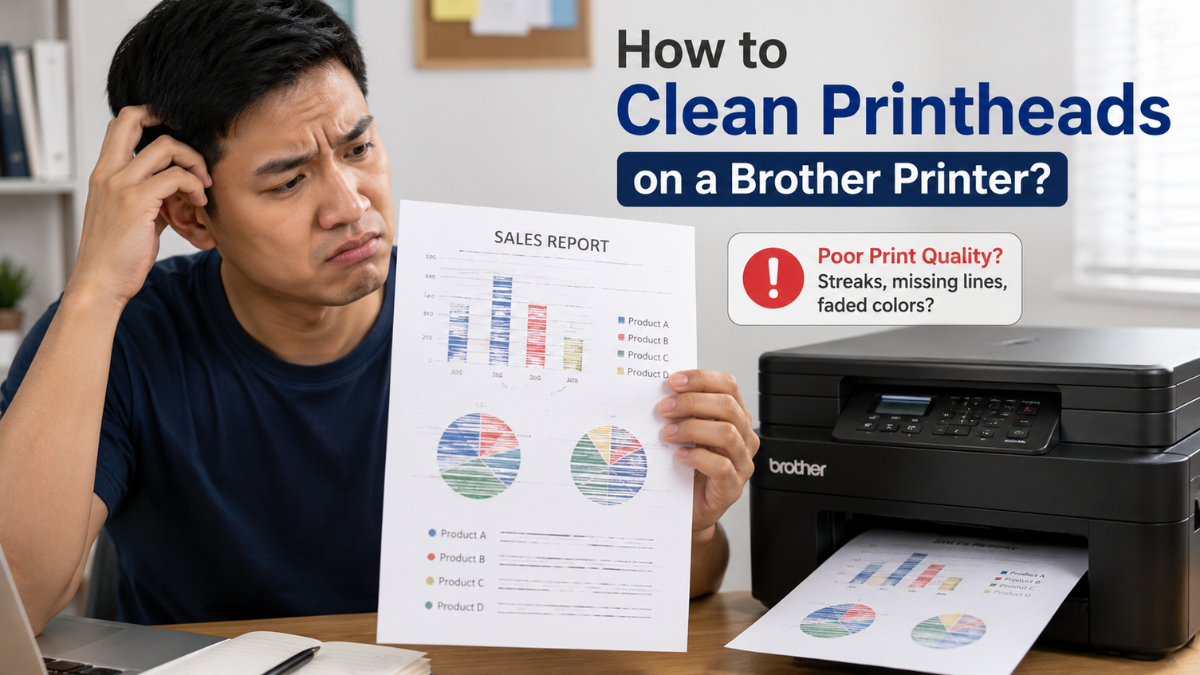
If your Brother printer is producing faded prints, streaks, missing colors, or blank lines, cleaning Brother printer heads is often the quickest way to restore print quality. Over time, ink can dry inside the printhead, restricting ink flow and causing uneven or incomplete prints. Fortunately, learning how to clean printheads on Brother printer is simple and only takes a few minutes using your printer’s built-in maintenance tools.
In this guide, you’ll learn when printhead cleaning is necessary, how to perform it safely, and what to do if the problem persists. Before cleaning, it’s also a good idea to run a nozzle check to confirm that clogged nozzles are causing the issue.
Why Do Brother Printheads Become Clogged?
Like any inkjet printer, a Brother printer relies on tiny nozzles inside the printhead to spray ink onto the paper. If the printer isn’t used regularly or ink dries inside the nozzles, clogs can develop.
Common causes include:
- Infrequent printing
- Allowing ink cartridges to run empty
- Powering off the printer incorrectly
- Dust or debris inside the printer
- Long periods of storage
These issues can lead to:
- Faded text
- Missing colors
- Horizontal white lines
- Blurry graphics
- Poor photo quality
Fortunately, cleaning Brother printer heads can usually resolve these problems before they become more serious.
Signs Your Brother Printer Needs Printhead Cleaning
Before cleaning the printheads, look for these common symptoms:
- Documents appear faded.
- Colors are missing from photos.
- Black ink is incomplete.
- White lines appear across printed pages.
- Images look streaky or uneven.
If you’re unsure whether the printheads are clogged, perform a Brother printer nozzle check first. A test pattern can quickly reveal whether ink is flowing correctly and whether printhead cleaning is necessary.
Cleaning Brother Printer Heads Using the Built-In Cleaning Function
How to Clean Printheads on Brother Printer
Most Brother inkjet printers include an automatic cleaning feature that removes dried ink from the nozzles.
Follow these steps:
Step 1: Check Your Ink Levels
Make sure each cartridge contains enough ink before starting the cleaning cycle.
Step 2: Access the Maintenance Menu
Using your printer’s control panel:
- Open Settings or Maintenance.
- Select Ink.
- Choose Cleaning.
Depending on your model, you may be able to clean all colors or select only the color experiencing problems.
Step 3: Start the Cleaning Cycle
Allow the printer to complete the cleaning process. This usually takes a few minutes.
Avoid interrupting the cleaning cycle once it has started.
Step 4: Print a Nozzle Check
After cleaning, print another nozzle check page.
If the pattern looks complete, the cleaning was successful.
If missing lines remain, repeat the cleaning process one more time.
Brother Printer Nozzle Cleaning vs. Nozzle Check
Many users confuse Brother printer nozzle cleaning with a nozzle check, but they serve different purposes.
A nozzle cleaning cycle attempts to remove dried ink from the printhead.
A nozzle check simply prints a test pattern so you can inspect ink flow.
Think of it this way:
- Nozzle Check = Diagnoses the problem
- Nozzle Cleaning = Attempts to fix the problem
Running a nozzle check before cleaning helps avoid unnecessary cleaning cycles, which consume ink.
Can You Clean Print Head on Brother Printer Manually?
In most situations, Brother recommends using the built-in cleaning function instead of manually cleaning the printhead.
Manual cleaning should only be considered if several automatic cleaning cycles fail and your printer model allows access to the printhead.
If you choose to clean print head on Brother printer manually:
- Turn off and unplug the printer.
- Follow your printer model’s maintenance instructions.
- Avoid using excessive force.
- Never use sharp objects inside the printer.
Improper manual cleaning can damage delicate components.
How to Clean Brother Inkjet Printhead Safely
If you’re wondering how to clean Brother inkjet printhead safely, the best approach is to let the printer perform the cleaning automatically.
To keep your printhead in good condition:
- Print at least once every week.
- Keep ink cartridges installed.
- Replace empty cartridges promptly.
- Store the printer in a cool, dry place.
- Turn the printer off using the power button.
These simple habits on how to clean printheads on Brother printer would help prevent dried ink from clogging the nozzles.
What If Printhead Cleaning Doesn’t Work?
If print quality still hasn’t improved after cleaning Brother printer heads , try these additional troubleshooting steps.
Run Another Nozzle Check
Print another test page to determine whether the cleaning improved ink flow.
If only one color remains clogged, another cleaning cycle may help.
Check the Ink Cartridges
Poor print quality isn’t always caused by clogged printheads.
If you recently installed new cartridges and your printer displays a Brother printer not recognizing new ink cartridge error, remove and reinstall the cartridges carefully. Make sure they’re compatible with your specific printer model.
Inspect Your Ink Quality
High-quality compatible ink cartridges can provide reliable print performance when manufactured for your Brother printer. However, poorly made cartridges or damaged cartridges may affect ink flow and print quality.
If you’ve ruled out clogged printheads, consider replacing any suspect cartridges.
Tips to Prevent Clogged Printheads
Preventive maintenance is easier than fixing severe clogs.
Here are a few simple tips:
- Print one or two pages every week.
- Keep your printer clean.
- Avoid leaving cartridges empty.
- Run a nozzle check if print quality changes.
- Don’t perform excessive cleaning cycles.
These habits can significantly reduce the need for future printhead cleaning.
Final Thoughts
Cleaning Brother printer heads is one of the easiest ways to restore sharp, vibrant print quality when your printer starts producing faded text, missing colors, or streaky pages. By learning how to clean printheads on Brother printer using the built-in maintenance tools, you can often resolve common print quality issues without professional repair.
For the best results, begin with a nozzle check, perform the recommended cleaning cycle, and follow good maintenance practices to prevent future clogs. With regular care, your Brother printer will continue producing clear, reliable prints for years to come.
Frequently Asked Questions
1. How often should I perform cleaning Brother printheads?
Only perform cleaning Brother printer heads when you notice streaks, faded prints, missing colors, or after a nozzle check confirms clogged nozzles. Unnecessary cleaning uses extra ink.
2. How do I clean printheads on a Brother printer correctly?
The safest method is to use your printer’s built-in cleaning feature. If you’re unsure how to clean printheads on Brother printer, always begin with the automatic cleaning cycle before considering manual cleaning.
3. Is printer nozzle cleaning the same as a nozzle check?
No. Brother printer nozzle cleaning removes dried ink from the nozzles, while a nozzle check prints a test pattern to help identify whether cleaning is needed.
4. Can I clean Brother inkjet printhead manually?
You can clean the inkjet printhead manually on some models, but Brother generally recommends using the automatic cleaning function first. Manual cleaning should only be used when necessary and according to your printer’s instructions.
5. Why is my printer still printing poorly after cleaning?
If cleaning doesn’t resolve the issue, check your ink levels, inspect the cartridges, run another nozzle check, and verify that your printer settings are correct. Persistent issues may indicate worn components or damaged cartridges.
Related Articles
What Is a Printhead? Troubleshooting Clogs and More!
Brother Printer Nozzle Check: How to Test & Improve Print Quality
Brother Printer Not Recognizing New Ink Cartridge? How to Fix It Fast