
How to Find Brother Printer IP Address: Step-by-Step Guide
| Mar 12, 2026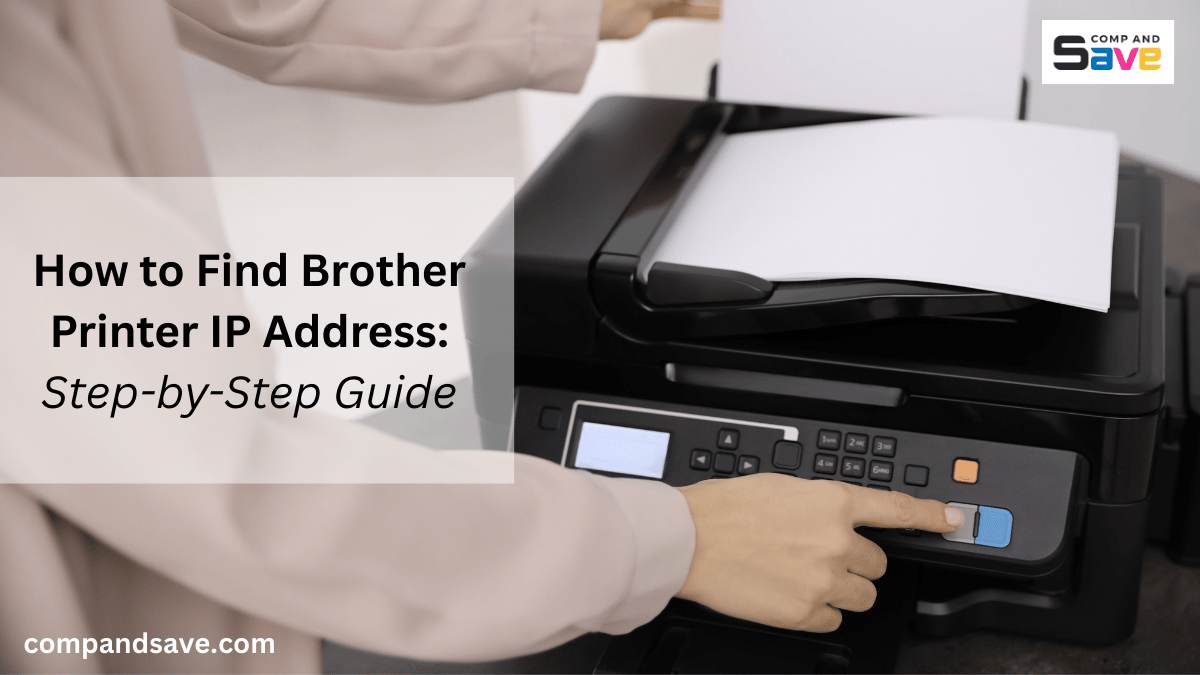
When documents won’t print, or your device can’t detect your Brother printer, the problem often traces back to one small detail: the Brother printer IP address.
Every network printer has a unique number that allows devices on the same network to communicate with it. Without it, devices cannot send data to the correct location on the network. That’s why understanding your printer IP address is essential when setting up or troubleshooting a network printer.
In this guide, you’ll learn simple ways to identify the IP address for printer Brother models, why it sometimes changes, and how to make sure your printer stays easy to connect to.
Understanding How Printer IP Addresses Work
When a printer connects to a WiFi or wired network, the router assigns it a number. This number allows computers and mobile devices to identify the printer among all the other devices connected to the same network.
The address usually looks something like this: 192.168.1.45
That number may not look meaningful at first, but it’s what allows a print request from your laptop to reach the correct printer instead of another device on the network.
For homes with only one printer, you may rarely think about this number. But in offices or shared spaces, understanding the Brother IP address printer can prevent many common printing problems.
Signs You May Need Your Printer IP Address
Most people only look for their printer’s IP address when something stops working. Here are some common situations where you may need to find Brother printer IP address information.
- Your computer cannot detect the printer: Sometimes a device stops showing up in the printer list even though it’s powered on.
- Printing suddenly stops working: The printer might still be connected to the network, but your computer may be referencing an outdated connection.
- You are installing the printer on another device: When adding a printer manually, entering the IP address ensures your computer connects to the correct device.
Quick Way to Locate the IP Address from the Printer
The fastest way to locate the network information is often to check the printer directly. Many models include a menu that allows you to find IP address of Brother printer systems within seconds.
Steps
- Turn on the printer
- Press the Menu button
- Open Network settings
- Select WLAN Status or TCP/IP
- View the address listed on the screen
This method works for most modern printers with built-in displays.
If the printer has a touchscreen panel, the navigation may look slightly different, but the network section will still show the same information.
Printing a Network Configuration Report
Some printers do not have a screen that displays detailed network settings. In those cases, printing a report can reveal the information you need.
The report includes connection status, network type, and the Brother IP address assigned to the printer.
How to print the report
- Press the Menu button
- Navigate to Print Reports
- Select Network Configuration
- Print the page
Once printed, review the TCP/IP section where the printer’s network information appears.
This page also contains other technical details that can be helpful when troubleshooting connection problems.
Finding the Printer Address from Your Computer
If the printer is already installed on your computer, you may be able to find its address in system settings. Many operating systems store the printer IP address as part of the connection information.
Windows method
- Open Control Panel
- Click Devices and Printers
- Right-click the printer
- Select Printer Properties
- Check the Ports tab
The network address usually appears next to the printer’s port.
Mac method
- Open System Settings
- Click Printers and Scanners
- Select the printer
- Click Options & Supplies
You may see the Brother printer address displayed within the printer’s connection details.
Using Your Router to Locate the Printer
Another reliable method is checking the router itself. Most routers maintain a list of connected devices. This list can help identify the Brother printer IP address assigned to your device.
Steps
- Open a browser
- Enter your router login address
- Sign in to the admin panel
- Open the connected devices section
- Look for the printer name
Once located, the router will display the network address currently assigned to the device.
Why Printer IP Addresses Sometimes Change
One reason printers stop working is that their IP addresses are not permanent.
Routers automatically assign addresses using a system called DHCP. This means the IP address for printer Brother devices may change after:
- Router restarts
- Network updates
- Power outages
- Printer reconnections
When this happens, your computer may still try to communicate with the previous address, resulting in printing errors.
Preventing Future Printer Connection Problems
If you frequently experience network printing issues, there is a simple solution. Assigning a static IP address ensures the Brother printer’s IP address remains consistent even when the network restarts. With a fixed address, your devices always know where to find the printer.
Benefits of static printer addresses
- Faster printer detection
- Fewer connection interruptions
- Easier troubleshooting
- Better management for offices with multiple printers
Most router admin panels allow you to reserve a specific address for the printer.
Best Practices for Managing Network Printers
For homes or small offices with several devices, organizing printer connections can save time. Here are a few helpful habits.
- Record device addresses: Keeping a list of device addresses prevents confusion later.
- Name printers clearly: Give each printer a name that matches its location or function.
- Monitor network changes: If your network hardware changes, checking device connections can prevent printing interruptions.
These simple practices help ensure that the Brother IP address printer remains easy to locate whenever needed.
Why Knowing Your Printer IP Address Matters
Many printing issues come down to network communication problems.
Understanding how to locate your printer’s address gives you control over troubleshooting. Instead of guessing what went wrong, you can quickly verify whether the printer is reachable on the network.
For people who rely on wireless printing daily, knowing this information can make a major difference in how quickly issues get resolved.
Final Thoughts
Knowing your Brother printer IP address is a small detail that can save you hours of frustration. Whether reconnecting devices, troubleshooting network issues, or setting up a new computer, having this information at hand keeps your printing workflow smooth and reliable.
Using the IP address for printer Brother models, you can quickly verify connections, manage multiple devices, and even assign a static address to prevent future problems. With these simple steps, network printing becomes predictable, stress-free, and much easier to maintain.
Frequently Asked Questions
How do I find my Brother printer IP address quickly?
The fastest way is through the printer’s menu under network settings, where TCP/IP information is displayed. If your printer has a small or touchscreen display, printing a network configuration page is a handy alternative. This page also shows additional network details that can help when troubleshooting connectivity issues.
Why can’t my computer detect my Brother printer?
This usually happens when the printer reconnects to the network and receives a new IP address. Make sure your computer is on the same network and refresh the printer connection. If that doesn’t work, reinstall the printer using the current IP address to restore communication.
Does every network printer have an IP address?
Yes, every printer connected via WiFi or Ethernet receives a unique IP address from the router. This number allows your devices to locate and communicate with the printer. Even in a small home network, knowing this IP is essential for troubleshooting and efficient device management.
Can two printers have the same IP address?
No, each device on a network must have a unique IP address to avoid conflicts. If two printers share the same IP, neither will function properly, and print jobs may fail. Using static IPs or reserving addresses in your router ensures each printer stays uniquely identifiable.
Should I assign a static IP address to my printer?
Yes, especially in offices or shared environments where printers are used by multiple devices. A static IP prevents the address from changing after a router restarts, reducing connection issues. This ensures your printer is always discoverable and simplifies long-term network management.
Related Articles:
How to Find Printer IP Address: Step-by-Step Guide
Printer IP Address Not Showing? Here’s How to Fix It