
How to Fix a Printer Not Printing Whole Page
| Oct 17, 2026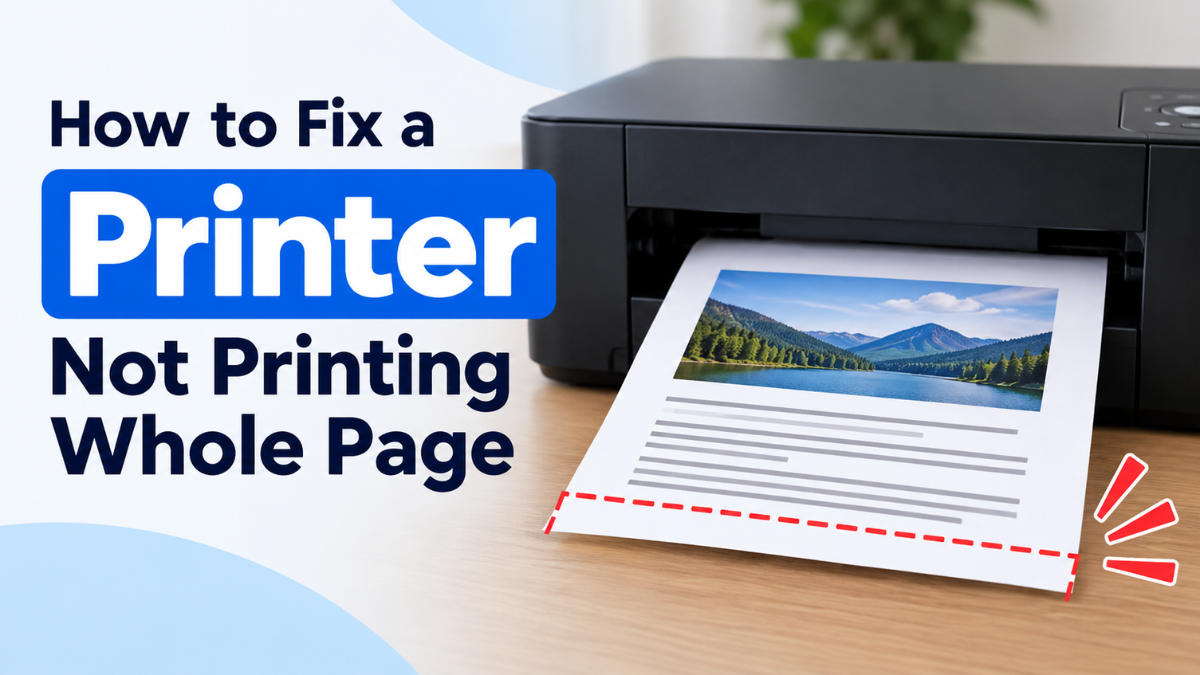
Have you ever printed an important document only to discover that the bottom lines are missing or the sides have been cut off? If your printer not printing whole page issue is causing frustration, the problem may be related to paper size, page margins, scaling settings, or your printer driver.
A printer cutting off bottom of page can make school assignments, business documents, and photos look incomplete. Fortunately, you don’t always need a new printer to solve the problem. A few simple adjustments can often restore your documents to their intended layout and help you improve print quality.
In this guide, we’ll cover seven common causes and easy fixes to help you print complete pages again.
Why Is My Printer Not Printing Whole Page?
When a printer cuts off text or images, it usually means the content extends beyond the area the printer can print or the paper settings don’t match the document.
For example, your document might be formatted for A4 paper while your printer is set to Letter size. Incorrect margins or scaling settings can also prevent the entire page from printing.
Before replacing ink cartridges or seeking professional help, try the following troubleshooting steps:
1. Check Your Printer’s Paper Size Settings
One of the most common reasons a printer cuts off part of a document is a mismatch between the paper size selected in your document and the paper loaded in the printer.
For example, if your document is formatted for A4 paper but your printer settings specify Letter size, some content may extend beyond the printable area.
How to fix it:
- Open the document you want to print.
- Go to the Page Setup, Layout, or similar settings in your application.
- Check the selected paper size, such as A4 or Letter.
- Open the print dialog and verify that the printer uses the same paper size.
- Make sure the paper loaded in the tray matches the selected size.
- Print the document again.
Always check both your document settings and printer preferences. Correcting a mismatch may resolve the problem immediately.
2. Adjust the Page Margins
If your printer is cutting off text at the bottom or sides, your document’s margins may be too narrow.
Most printers cannot print all the way to the edges of ordinary paper. This means text or images placed too close to an edge may not appear in the final print.
How to fix it:
- Open your document.
- Find the Margins option under the Layout or Page Layout menu.
- Select a standard margin setting or increase the margins manually.
- Check that all text, tables, and images fit within the page.
- Open Print Preview before printing.
If you’re printing a document with a large table or a long paragraph near the bottom, slightly increasing the bottom margin may help.
Keep in mind that changing margins can shift content onto another page, so review the layout before printing again.
3. Change the Print Scaling Settings
Print scaling controls how a document’s content fits onto the paper. If the scaling setting is incorrect, parts of your document may be cut off.
For example, a document created at a larger page size may not fit correctly when printed on smaller paper.
How to fix it:
- Open the document’s print dialog.
- Look for options such as Scale, Fit to Page, Fit to Printable Area, or Shrink to Fit.
- Choose an option that fits the document to the selected paper size, if available.
- Check the preview to see whether all content is visible.
- Print one test copy.
The exact options vary by application and printer model. If the document is already the correct size, avoid reducing it unnecessarily because the text may become too small to read.
4. Check the Printable Area of Your Printer
Sometimes the printer is working correctly, but the document contains text or images outside the printer’s supported printing area.
Many standard printers leave small unprinted borders around the edges of the paper. These areas are often called non-printable margins.
If your printer is cutting off bottom of page content, check whether the final lines sit too close to the bottom edge.
How to fix it:
- Move text and images away from the edges.
- Increase the bottom margin.
- Reduce the size of large images or tables.
- Check whether your printer supports borderless printing if you need content to extend to the edges.
If you are printing photos, borderless printing may be useful. However, some printers slightly enlarge borderless images, which can crop small portions of the image around the edges.
5. Make Sure the Document Fits the Page
A document may look correct on your computer but still print incorrectly if its layout extends beyond the page boundaries.
This can happen in Microsoft Word, Excel, PDFs, and other applications. Wide spreadsheets, large images, and tables are especially likely to cause problems.
How to fix it:
- Microsoft Word: Check the page size, margins, and Print Preview.
- Microsoft Excel: Use the scaling options to fit the sheet to one page wide, if appropriate.
- PDF files: Check the print dialog and select a suitable option such as Fit.
- Images: Resize the image or choose a paper size that accommodates it.
If only one document has the problem, the issue may be its formatting rather than the printer itself.
6. Update or Reinstall Your Printer Driver
A printer driver helps your computer communicate with your printer. If the driver is outdated, corrupted, or incompatible with your operating system, it may cause unexpected printing problems.
If your printer keeps cutting off bottom of page content even after you check the document and paper settings, updating the driver is worth trying.
How to fix it:
- Identify your printer’s exact model.
- Visit the manufacturer’s official support website.
- Look for the latest driver compatible with your computer.
- Follow the manufacturer’s installation instructions.
- Restart your computer and print a test document.
Avoid downloading drivers from unfamiliar websites. Using the correct driver from the manufacturer can help prevent additional printing issues.
7. Try Printing From Another Application
If the previous fixes don’t work and still show the printer cutting off bottom of page, try printing the same content from another application.
For example, if a PDF prints incorrectly, open a different PDF or print a simple document from a word processor.
This helps you determine whether the problem comes from a specific file or application.
How to test it:
- Open a simple document.
- Make sure the paper size and margins are correct.
- Select your printer and choose one copy.
- Review the print preview.
- Print the document.
If the new document prints correctly, check the formatting or print settings of the original file. If every document is affected, the issue may be related to the printer driver, paper settings, or printer itself.
For additional troubleshooting, see our guide on printer won’t print.
Printer Cutting Off Bottom Page: What To Do If Issue Persists?
If your printer not printing whole page problem continues after trying these steps, check whether the issue occurs with every document and application.
Print a test page, inspect the paper settings once more, and confirm that the printer is using the correct driver. You can also consult the printer manufacturer’s support instructions for model-specific guidance.
If the page is complete but the text appears faded, streaky, or blurry, the issue may be related to ink or printhead performance rather than page layout. In that case, our guide can help you fix poor print quality.
Final Thoughts
A printer not printing whole page problem can be frustrating, especially when you’re printing important schoolwork, business documents, or photos. Fortunately, the cause is often something simple, such as incorrect paper size, narrow margins, unsuitable scaling settings, or a document that extends beyond the printable area.
If your printer cutting off bottom of page issue persists, start by checking the paper size and margins, then review the scaling settings and update the printer driver if needed.
With these simple troubleshooting steps, you can often identify the cause, restore your document layout, and get complete pages without unnecessary repairs or replacements.
Frequently Asked Questions
1. Why is my printer cutting off the bottom of the page?
This usually happens because the bottom margin is too small, the document extends beyond the printable area, or the selected paper size doesn’t match the document. Increase the bottom margin, check the paper size, and review the print preview.
2. Why does my printer keep cutting off the bottom of the page in Word?
In Word, the document may have incorrect page dimensions, narrow margins, or content positioned too close to the bottom edge. Check the Layout settings, increase the margins if necessary, and review the document in Print Preview.
3. How can I print an entire page without cutting off the edges?
Make sure the document and printer use the same paper size. Then check the margins and choose an appropriate scaling option, such as Fit to Page, if your application supports it. Remember that standard printers generally cannot print all the way to the paper’s edges.
4. Can a printer driver cause a page to print incorrectly?
Yes. An outdated or incompatible printer driver may affect how documents are processed. Updating or reinstalling the correct driver from the manufacturer’s official website may help if the problem affects multiple documents.
Related Articles
How to Improve Print Quality: 10 Easy Tips for Better Prints
Printer Won’t Print: Top 15 FAQs & Fixes
Poor Print Quality Fix: Stop Smudges and Blurry Prints Fast!