
How to Reset Epson Ink Cartridge Chip Without Resetter: Easy Fixes That Actually Work
| May 21, 2026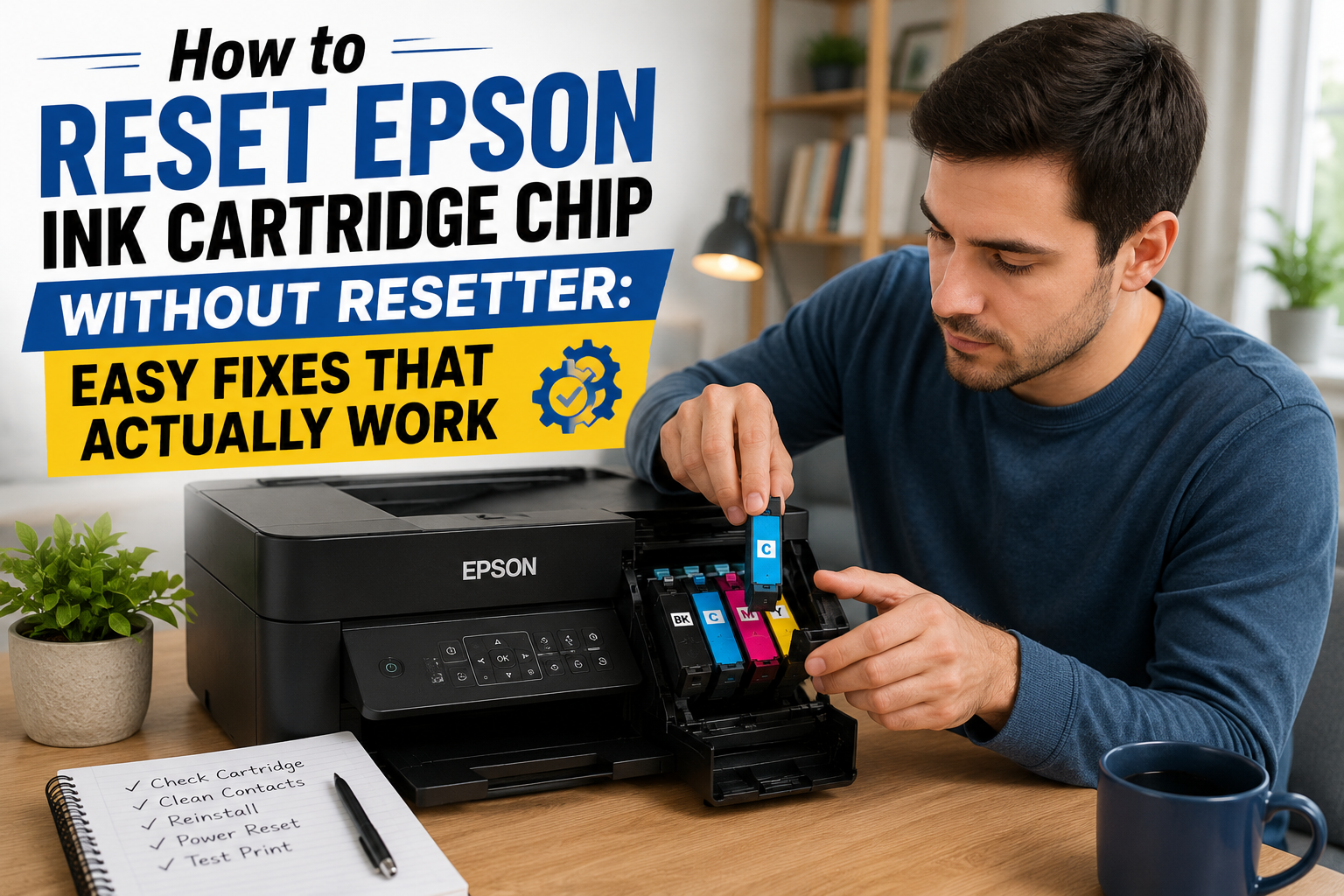
Seeing Epson printer not recognizing ink cartridges messages can be frustrating, especially when the cartridge still has ink left. Many Epson users experience cartridge recognition errors even when the cartridge is not empty and in some cases, your Epson printer may stop printing completely, leaving you frustrated. A lot of printer users immediately search for ways to reset Epson ink cartridge chip without a resetter tool, hoping for a quick and inexpensive solution.
If you are curious how to reset Epson ink cartridge chip without resetter tools, the good news is that there are several easy fixes worth trying first. While not every Epson cartridge chip can be fully reset manually, many cartridge recognition problems are caused by simple issues such as dirty contacts, improper installation, firmware issues, or temporary printer errors rather than a damaged chip.
In this guide, we’ll explain what Epson cartridge chips do, whether manual resetting is really possible, and the simple fixes that actually work for many users.
What Does an Epson Ink Cartridge Chip Do?
An Epson ink cartridge chip is a small electronic component attached to the cartridge. Its main job is to communicate with the printer and confirm details such as:
- Ink levels
- Cartridge compatibility
- Cartridge installation status
- Cartridge authentication
The chip helps your printer recognize whether the cartridge is installed properly and whether it can continue printing.
When the chip is not detected, your printer may display messages like:
- “Ink cartridge not recognized”
- “Replace cartridge”
- “Cannot detect cartridge”
- “Ink levels unavailable”
These problems can happen with both genuine Epson cartridges and compatible or remanufactured cartridges. It may even cause an Epson printer not printing problem, even if there is still ink inside the cartridge.
Why Is It Necessary to Perform Epson Cartridge Chip Reset?
Resetting the cartridge chip may help restore communication between the cartridge and the printer.
Some users look for ways to reset Epson ink cartridge without resetter tools because the printer suddenly stops recognizing a cartridge after replacing ink or reinstalling it.
Here are some common reasons why resetting or refreshing the cartridge chip may become necessary:
1. Cartridge Recognition Errors
The printer may suddenly stop detecting the cartridge even if it is installed correctly.
2. Incorrect Ink Level Readings
Sometimes the chip incorrectly reports low or empty ink levels.
3. Printer Firmware Changes
An update may occasionally affect cartridge compatibility. In some cases, users explore options like an Epson printer firmware reset when cartridge recognition problems begin after an update.
4. Temporary Printer Memory Errors
Your printer may simply need a refresh to reconnect with the cartridge chip.
Is It Possible to Reset Epson Ink Cartridge Without Resetter?
The short answer is: sometimes, yes. It depends on the cartridge model and the cause of the problem.
In many situations, the chip itself is not permanently damaged. Instead, the printer may simply fail to read the chip correctly due to:
- Dirty chip contacts
- Static electricity
- Incorrect installation
- Firmware conflicts
- Temporary printer memory errors
Many users search for how to reset Epson cartridge chip without resetter methods expecting a full reset. In reality, what often works is restoring cartridge recognition rather than permanently resetting the chip itself.
A dedicated Epson cartridge chip reset tool is still the most reliable method for resetting many Epson cartridge chips. However, some printer recognition issues can be resolved without one.
If you are looking for ways to reset Epson ink cartridge chip without resetter, start with the easy fixes below.
How to Reset Epson Ink Cartridge Chip Without Resetter: Easy Fixes That You Can Try
1. Remove and Reinstall the Cartridge
Sometimes the simplest solution works best. A poorly seated cartridge may prevent the printer from reading the chip correctly.
To try this method:
- Turn on your printer.
- Open the cartridge access cover.
- Carefully remove the affected cartridge.
- Wait for about one minute.
- Reinsert the cartridge firmly until it clicks into place.
- Close the cover and restart the printer.
This simple method may help reset Epson ink cartridge chip without resetter efforts by refreshing the cartridge connection.
2. Clean the Cartridge Chip Contacts
Dust, dried ink, fingerprints, or debris on the chip contacts can interfere with communication between the cartridge and the printer.
What You Need:
- Lint-free cloth or microfiber cloth
- Cotton swab
- Small amount of isopropyl alcohol (optional)
Steps:
- Remove the cartridge from the printer.
- Locate the gold or copper-colored chip.
- Gently wipe the chip using a dry microfiber cloth.
- If needed, lightly dampen a cotton swab with isopropyl alcohol.
- Carefully clean the chip contacts.
- Let the cartridge dry completely.
- Reinstall the cartridge.
Avoid touching the chip directly with your fingers after cleaning.
In many cases, this simple way on how to reset Epson ink cartridge chip without resetter restores communication between the cartridge and printer.
3. Reset Epson Ink Cartridge Chip Without Resetter Using a Power Reset
Sometimes your printer stores temporary cartridge errors in memory.
A power reset may help clear these glitches.
Steps:
- Turn off the printer.
- Unplug it from the power source.
- Wait 5 minutes.
- Hold the power button for 15 seconds.
- Plug the printer back in.
- Turn it on again.
This is one of the most commonly recommended methods for users searching reset Epson ink cartridge without resetter solutions.
4. Reinstall All Ink Cartridges
Sometimes one cartridge affects how the printer reads the others.
Try This:
- Remove all cartridges from the printer.
- Inspect each cartridge chip for dirt or damage.
- Reinstall all cartridges one at a time.
- Make sure every cartridge locks securely into place.
This method helps refresh communication between all installed cartridges and the printer.
If you are trying the method on how to reset Epson ink cartridge chip without resetter at home, this easy troubleshooting step is worth trying.
5. Disable and Re-enable the Printer
On some Epson models, restarting the printer multiple times may force the system to recheck cartridge status.
Steps:
- Turn the printer off.
- Wait 30 seconds.
- Turn it back on.
- Repeat this process 2 to 3 times.
While this may sound simple, some users report success after repeated restarts.
6. Check for Firmware-Related Problems
Firmware updates can sometimes cause Epson printers to reject compatible or remanufactured cartridges.
If your printer stopped recognizing cartridges shortly after an update, firmware compatibility may be the issue.
Possible Solutions:
- Reinstall the cartridge after restarting the printer
- Use cartridges designed for your firmware version
- Contact the cartridge supplier for updated compatibility information
- Check whether firmware rollback options are available for your printer model
Be careful when attempting firmware changes. Incorrect firmware installation may affect printer performance.
Signs Your Epson Cartridge Chip May Be Damaged
Although many users successfully reset Epson ink cartridge without resetter methods using troubleshooting alone, some situations require additional tools.
A damaged cartridge chip often shows symptoms such as:
- Printer cannot detect the cartridge at all
- Error messages remain after cleaning and reinstalling
- Printer recognizes other cartridges normally
- Cartridge works intermittently
- Visible scratches or corrosion on the chip
At this point, manual troubleshooting may no longer solve the problem. Replacing the cartridge or using a resetter tool may be the best solution.
Tips to Prevent Epson Cartridge Recognition Problems
The best way to avoid cartridge chip problems is through simple maintenance.
Handle Cartridges Carefully
Avoid touching the cartridge chip directly.
Install Cartridges Properly
Always push cartridges securely into place.
Keep Chip Contacts Clean
Dust and dried ink can interfere with communication.
Avoid Frequent Cartridge Swapping
Removing cartridges too often may damage the chip contacts over time.
Use Reliable Ink Cartridges
Low-quality cartridges may cause compatibility issues.
Final Thoughts
Learning how to reset Epson ink cartridge chip without resetter tools can save time and money, especially if the issue is only temporary. In many cases, simple troubleshooting methods such as cleaning chip contacts, reinstalling cartridges, and restarting the printer may help restore cartridge recognition.
Still, it is important to remember that not every Epson cartridge chip can be manually reset. If these fixes do not work, using a resetter tool or replacing the cartridge may eventually become necessary.
Before spending money on repairs or new cartridges, try these easy fixes first. You may be surprised at how quickly your printer starts working again.
Frequently Asked Questions
1. Can I really reset Epson ink cartridge without resetter tools?
Sometimes. If the issue is caused by dirty contacts, installation problems, or temporary printer glitches, troubleshooting methods may help restore cartridge recognition.
2. Why is my Epson printer not recognizing ink cartridges?
Common reasons include dirty chip contacts, incorrect installation, firmware changes, or damaged cartridge chips.
3. What is the easiest way to reset Epson ink cartridge chip without resetter methods?
Start by removing and reinstalling the cartridge, cleaning the chip contacts, and performing a power reset.
4. Can an Epson printer firmware reset fix cartridge problems?
In some cases, firmware-related issues may affect cartridge compatibility. However, not all problems require a firmware reset.
5. What if none of these fixes work?
If troubleshooting fails, you may need a replacement cartridge or a dedicated chip resetter tool.
Related Articles
Epson Printer Not Recognizing Ink Cartridges? Try Easy Fixes First
Why Is My Epson Printer Not Printing Even Though There’s Ink?
Old Epson Firmware Download: Downgrade and Reset Guide
How to Clean Epson Printer Heads: Clear Clogs & Restore Quality