
HP Firmware Blocks Non-HP Ink Cartridges: Causes & Easy Fixes
| Apr 28, 2026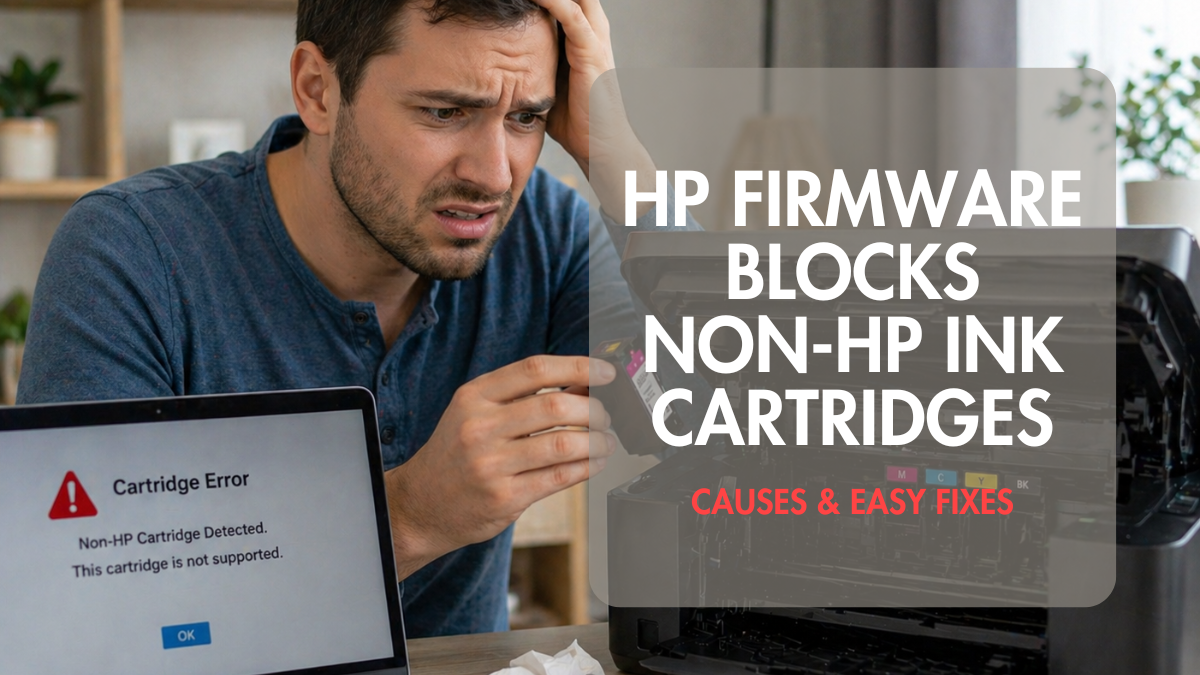
If your HP printer suddenly refuses to recognize your ink cartridge, especially a third-party or compatible one, then you’re not alone. Many users across homes, offices, and small businesses encounter this issue after a firmware update. One day your printer works perfectly, and the next, it displays errors like “Non-HP Detected,” “Cartridge Problem,” “Incompatible Cartridge,” or “Supply System Error.”
So what’s going on?
In many cases, the culprit is HP firmware blocks non-HP ink cartridges, especially after updates. For budget-conscious users, this can feel like a dead end—but it’s not. In most cases, when an HP printer blocking non-HP cartridges error appears, there are simple fixes you can try at home. This guide will walk you through why it happens and how to solve it quickly.
What Does “HP Firmware Blocks Non-HP Ink Cartridges” Mean?
Firmware is the internal software that controls how your printer operates. HP periodically releases firmware updates to improve performance, security, and functionality.
However, some updates would result in non-HP cartridge blocked that prevent the use of compatible or third-party ink cartridges. This feature is often referred to as Dynamic Security.
When activated, your printer may:
- Reject compatible or remanufactured cartridges
- Display error messages even if the cartridge is full
- Stop printing altogether
This can happen even if the cartridge worked perfectly before the update.
Why Does HP Block Third-Party Ink?
To understand the issue, it helps to know how firmware works. Firmware is the internal software that controls how your printer operates. Sometimes, an HP firmware update blocks non-HP ink cartridges to ensure compatibility and maintain print quality.
1. Quality Control
HP claims that original cartridges provide the best print quality and reliability.
2. Security Measures
Firmware updates may include chip authentication to prevent unauthorized cartridges. This is why some users notice their HP printer firmware blocksnon-HP ink cartridges right after updating.
3. Cartridge Authentication
Your printer checks the chip on the cartridge. If it doesn’t match expected data, a non-HP cartridge blocked error may appear.
4. Dynamic Security Features
Some HP printers use “dynamic security,” which can result in an HP printer cartridge blocked by firmware message when using third-party ink.
3. Business Strategy
OEM ink is a major source of revenue, so limiting third-party options helps maintain sales.
While these reasons may make sense from a manufacturer’s perspective, they can be inconvenient for users who rely on more affordable alternatives.
Common Error Messages You Might See
If your printer is affected, you may encounter messages such as:
- “Cartridge cannot be used until printer is enrolled in HP Instant Ink”
- “Incompatible or Damaged Cartridge”
- “Supply System Problem”
- “Non-HP chip detected”
These are clear indicators of HP printer blocking non-HP cartridges due to firmware restrictions.
Easy Fixes When HP Printer Blocking Non-HP Cartridges
Here are the most effective solutions you can try:
1. Restart Your Printer
Sometimes, the issue is temporary.
Steps:
- Turn off the printer
- Unplug it from the power source
- Wait for 2–3 minutes
- Plug it back in and turn it on
This may resolve minor issues related to HP firmware blocks non-HP ink cartridges by clearing minor firmware glitches.
2. Reinstall the Ink Cartridge
Improper installation can trigger compatibility errors.
What to do:
- Remove the cartridge
- Clean the contacts gently with a lint-free cloth
- Reinstall it securely
- Make sure there’s no protective tape left on the cartridge.
This can help if your HP printer cartridge blocked by firmware message is caused by poor contact.
3. Disable Automatic Firmware Updates
If an HP firmware update blocks non-HP ink cartridges, preventing future updates can help avoid repeat issues.
Steps:
- Go to your printer settings menu
- Find Printer Maintenance or Update Settings
- Turn off Automatic Updates
By turning off the HP printer firmware update, it will help you avoid future firmware updates that may block third-party cartridges.
4. Roll Back the Firmware (Advanced)
If the problem started after a recent update, reverting to an older firmware version may help.
Important:
- Not all HP printers allow firmware rollback
- You’ll need to download a previous firmware version from trusted sources
This method is more technical but can restore compatibility.
5. Use Compatible Cartridges with Updated Chips
Some third-party manufacturers offer cartridges with updated chips designed to bypass firmware restrictions. If you’re dealing with a non-HP cartridge blocked error, switching to a more compatible version can solve the problem instantly.
Tip:
- Look for “firmware-safe” or “chip-updated” cartridges
- Buy from reputable sellers with good reviews like CompAndSave
6. Enable “Cartridge Protection” Settings (If Available)
Some HP printers have settings that can affect cartridge recognition.
Check:
- Disable Cartridge Protection
- Enable Cartridge Policy: Off
This may allow non-HP cartridges to function properly.
7. Try a Different Cartridge Brand
Not all third-party cartridges are created equal.
If one brand doesn’t work:
- Try a different compatible brand
- Choose well-reviewed and trusted manufacturers
Higher-quality cartridges are less likely to trigger errors. This is especially useful when HP printer blocking non-HP cartridges is inconsistent.
8. Update Printer Settings via App
Managing your printer through the HP Smart App can sometimes fix detection issues.
9. Check for General Cartridge Issues
Sometimes, the issue isn’t firmware at all. It could be just the HP cartridge problem itself, such as a dirty chip.
Can You Bypass HP Firmware Cartridge Restrictions?
This is one of the most common questions. The short answer: yes, in some cases.
Here are a few practical approaches:
- Use updated compatible cartridges
- Avoid installing the latest firmware if not necessary
- Reset your printer (for some models)
However, keep expectations realistic as modern firmware is designed to prevent easy bypassing.
When None of the Fixes Work
If your printer still won’t accept non-HP ink, you may need to consider:
- Switching to genuine HP cartridges
- Contacting HP support
- Replacing the printer with a model that allows third-party ink
Some newer HP printers have stricter firmware controls that are harder to bypass.
How to Prevent “HP Printer Firmware Blocks non-HP Ink Cartridges” Problem in the Future
To avoid running into this issue again, follow these tips:
1. Turn Off Automatic Updates
This is the most effective way to prevent firmware-related problems. Prevent unexpected changes that may trigger HP firmware blocks non-HP ink cartridges.
2. Research Before Updating
Check online forums or reviews before installing firmware updates.
3. Stock Up on Compatible Cartridges
Buy cartridges with updated chips that match your printer’s firmware.
4. Use Your Printer Regularly
Regular use helps avoid additional issues like dried ink or clogging.
5. Keep Your Printer Clean
Dust and debris can interfere with cartridge detection.
6. Buy Reliable Compatible Cartridges
Choose trusted suppliers to reduce the chance of errors.
When Should You Seek Professional Help?
If none of the fixes work, it may be time to:
- Contact HP support
- Consider using original cartridges
- Visit a technician if hardware issues are suspected
Persistent cases about HP printer firmware blocks non-HP ink cartridges error may require professional assistance.
Are Third-Party Ink Cartridges Still Worth It?
Despite firmware restrictions, third-party ink cartridges remain a popular choice.
Pros:
- Lower cost compared to OEM ink
- High-yield options available
- Widely accessible
Cons:
- Risk of compatibility issues after updates
- Potential for inconsistent quality (depending on brand)
The key is to choose reliable brands and stay informed about firmware changes.
Final Thoughts
Dealing with errors caused by HP firmware blocks non-HP ink cartridges can be frustrating, especially when you’re trying to save money with compatible ink. But in many cases, the issue can be resolved with simple troubleshooting steps like restarting your printer, reinstalling cartridges, or disabling automatic updates.
For home users, students, and small businesses, understanding how firmware affects your printer gives you more control over your printing costs and performance. By understanding why your HP printer blocking non-HP cartridges happens and following the steps above, you can restore functionality and continue printing without unnecessary interruptions. Stay proactive, choose reliable cartridges, and keep your printer settings in check and you’ll avoid most of these headaches in the future.
Frequently Asked Questions
1. Why does HP firmware block non-HP ink cartridges?
HP firmware updates are designed to improve performance and security, but they can also restrict third-party cartridges. This is why HP firmware is blocking non-HP ink cartridges in some cases.
2. How do I fix an HP printer blocking non-HP cartridges error?
You can restart your printer, reinstall the cartridge, or disable automatic updates. These steps often resolve HP printer blocking third party ink cartridges issues quickly.
3. What does “non-HP cartridge blocked” mean?
It means your printer cannot recognize or accept a third-party cartridge, often due to firmware restrictions or chip compatibility.
4. Can I still use non-HP ink cartridges after a firmware update?
Yes, but you may need updated compatible cartridges with newer versions of the chip.
5. Is there a permanent fix for HP printer firmware blocking non-HP ink cartridges?
There’s no universal permanent fix, but using compatible cartridges and managing updates can reduce the chances of encountering HP printer firmware blocks non-HP ink cartridges error again.
Related Articles
Best Fix for Non-HP Chip Detected Error: Solutions You Can Trust
HP Cartridge Problem: Solve It Today With These Proven Fixes
HP Printer Firmware Update: A Guide for Smooth & Safe Upgrades
HP Smart App: How to Download, Set Up & Manage Your HP Printer