
HP Printer Firmware Downgrade: A Simple Guide & Why It Helps
| May 09, 2026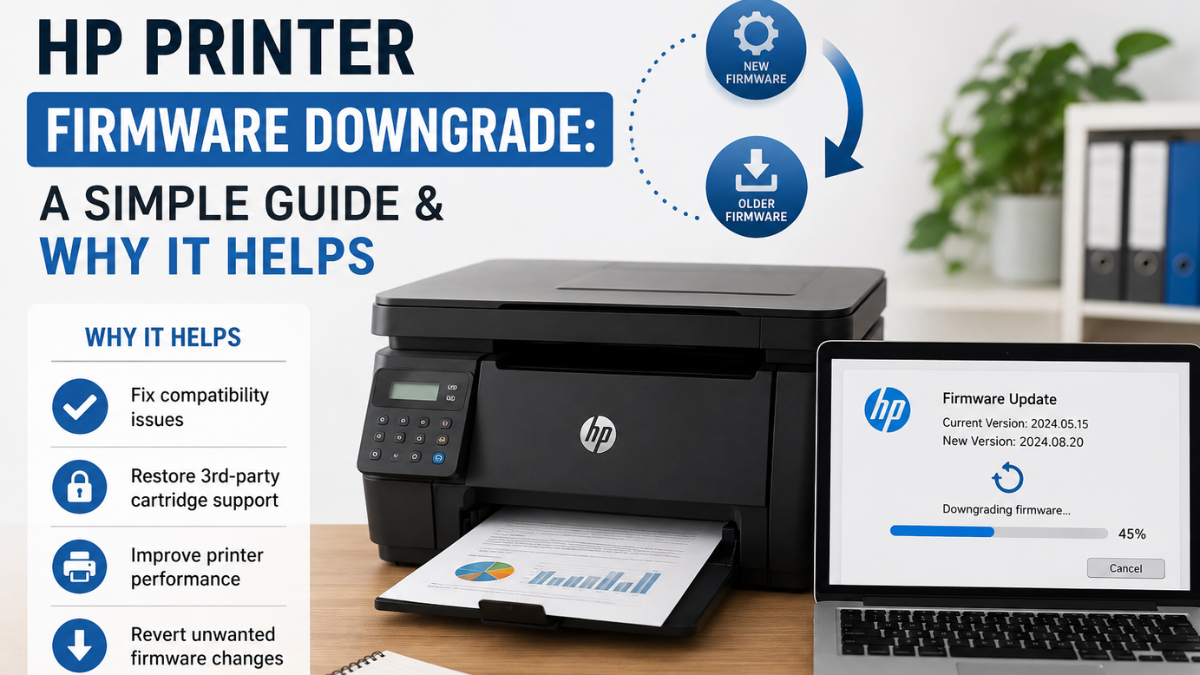
Firmware updates are meant to improve performance, fix bugs, and enhance security. But for many printer users, especially those using compatible cartridges or third-party supplies, a new update can sometimes create more problems than it solves. Suddenly, your printer may stop recognizing cartridges, refuse to print, or show persistent error messages.
If your printer suddenly stops working after an update, you’re not alone. Many users search for an HP printer firmware downgrade when their device begins rejecting cartridges or refusing to print. One common reason is a change in system rules, such as “HP firmware blocks non-HP ink cartridges”, which can happen after a new update.
This guide explains everything in simple terms—what firmware is, why updates sometimes break printing, and how a firmware downgrade can help restore normal performance without complicated technical steps.
For many users, especially those relying on budget-friendly printing, an HP firmware downgrade download becomes the quickest way to fix unexpected issues and regain control of their printer.
What Is Printer Firmware (And Why It Matters)?
Firmware is the built-in software inside your printer that controls how it works. Think of it as the “brain” of your device. It handles everything from printing and scanning to recognizing ink cartridges.
When you run an upgrade printer firmware, your printer receives new instructions from HP. These updates are supposed to improve performance, but sometimes they also introduce restrictions or bugs.
That’s why users often search for HP firmware downgrade download options when things go wrong after an update.
Why Firmware Updates Can Cause Printer Problems
Not every HP printer firmware update affects users the same way. However, many HP printer users report issues after an update, especially those using non-HP or compatible ink cartridges. Here are some common problems:
1. Cartridge Not Recognized
After an update, your printer may suddenly display errors like:
- “Cartridge problem”
- “Incompatible cartridge”
- “Cartridge blocked”
This often happens because newer firmware versions may tighten authentication checks for cartridges.
2. Printing Stops Completely
Some users find that their printer refuses to print until original cartridges are installed or firmware is updated again.
3. Reduced Functionality
Features like scanning, wireless printing, or mobile printing may become unstable after an update.
4. Forced Compatibility Restrictions
Firmware updates can sometimes limit the use of third-party or refilled cartridges, affecting budget-conscious users.
Many users report seeing messages like “HP printer says cartridge incompatible” after a recent update.
In some cases, a firmware update changes how the printer checks ink cartridges. If the printer becomes too strict, it may reject cartridges that previously worked fine.
This is where an HP printer firmware downgrade becomes useful—it can roll your printer back to a version that worked normally.
Benefits of HP Firmware Downgrade Download
An HP printer firmware downgrade is the process of installing an older version of your printer’s firmware to replace the newer one that is causing issues.
Think of it like going back to a previous software version that worked better with your setup—especially if the latest update introduced compatibility problems. These are the benefits:
1. Restores Cartridge Compatibility
One of the biggest advantages is regaining support for compatible or third-party cartridges that stopped working after an update.
2. Fixes Sudden Printing Errors
If your printer stopped printing after a firmware update, reverting to an older version may resolve the issue.
3. Improves Stability
Older firmware versions may be more stable for your specific printer setup, especially if the latest update introduced bugs.
4. Reduces Unnecessary Restrictions
Some updates add strict cartridge validation or feature limitations. Downgrading may remove those restrictions.
For many users, performing afirmware downgrade is not about changing advanced settings—it’s about fixing problems that started after an update.
If your printer was working fine before, but issues began after an update, a downgrade is often the simplest solution. Many users turn to HP firmware downgrade download options after experiencing issues because it often restores normal function quickly.
HP Printer Firmware Downgrade: Where to Start
When looking for an HP printer firmware downgrade download, it’s important to be careful. Not all files online are safe or compatible with your printer model.
A safe HP firmware downgrade download should always match your exact printer model and version. Using the wrong file can cause more issues instead of fixing them.
Some users also search for HP printer old firmware download options to find previous working versions. While this can be helpful, always ensure the source is trusted before installing anything.
How to Downgrade HP Printer Firmware Safely
Below is a general, safe approach on how to downgrade HP printer firmware. The exact steps may vary depending on your printer model.
Step 1: Identify Your Current Firmware Version
- Go to your printer’s control panel or settings menu
- Check “About Printer” or “Firmware Version”
- Note the version number
Step 2: Find a Compatible Older Firmware Version
- Visit official HP support resources or trusted archives
- Search for your printer model and look for previous firmware versions
- Make sure the version is compatible with your exact printer model
⚠️ Look for a verified HP firmware downgrade download that matches your printer model. Avoid downloading firmware from unknown or untrusted websites.
Step 3: Prepare Your Printer Connection
- Use a USB cable if possible for a more stable connection
- Ensure your printer is turned on and connected to your computer
- Close all unnecessary programs
Step 4: Run the Firmware Downgrade File
- Open the downloaded firmware file
- Follow the on-screen instructions
- Do not turn off your printer during the process
This step may take several minutes. Interrupting it can cause serious issues.
Step 5: Restart the Printer
Once the downgrade completes:
- Restart your printer
- Print a test page
- Check if cartridge or printing issues are resolved
Step 6: Disable Automatic Firmware Updates (Important)
To prevent the problem from returning, disable HP printer firmware update:
- Open HP Smart or printer settings
- Turn off automatic updates if available
- Or set updates to manual mode
This entire process is commonly referred to as downgrade HP printer firmware, and it can help bring your printer back to a stable working state.
Troubleshooting After Downgrade
If issues persist after downgrade:
1. Printer Still Not Recognizing Cartridges
- Remove and reinstall cartridges
- Clean cartridge contacts gently
- Restart printer again
2. Firmware Won’t Install
- Check USB connection
- Try a different computer
- Ensure correct firmware version
3. Printer Still Auto-Updates
- Disable internet connection temporarily
- Check HP Smart update settings again
Alternatives Before Downgrading
Before performing a downgrade, try these first:
- Restart printer and router
- Reinstall printer drivers
- Reset printer settings
- Use original cartridges temporarily
- Run HP Print and Scan Doctor tool
If none of these work, firmware downgrade becomes a reasonable next step.
Things to Remember Before Downgrading
Before you proceed with an HP printer firmware downgrade, keep these points in mind:
- Always match the firmware version to your printer model
- Avoid unofficial or unknown downloads
- Do not interrupt the installation process
- Check if automatic updates are enabled
It’s also a good idea to disable automatic updates after completing the process because this helps prevent the same issue from returning.
When You Should Consider Downgrading
You should only consider an HP printer firmware downgrade if:
- Problems started immediately after a printer firmware update
- Cartridge errors appear suddenly
- Basic troubleshooting does not work
- Printing stops completely after an update
If your printer is functioning normally, it’s better not to downgrade HP printer firmware.
Final Thoughts
An HP printer firmware downgrade is not something every user needs, but it can be extremely helpful when a recent update causes unexpected problems. Whether it’s cartridge errors, printing failures, or compatibility issues, rolling back to a stable version often restores normal function quickly.
If you’re struggling after a printer firmware update, looking for a safe HP firmware downgrade download could be the solution you need. Just make sure you follow the correct steps and use trusted files.
In many cases, a simple HP printer old firmware downloadand reinstallation is all it takes to bring your printer back to life—saving time, money, and frustration.
Frequently Asked Questions
1. What is an HP printer firmware downgrade?
An HP printer firmware downgrade is the process of installing an older firmware version to fix issues caused by a recent update.
2. Where can I get an HP firmware downgrade download?
You can find an HP printer old firmware download through trusted sources that match your printer model. Always avoid unverified websites.
3. Is it safe to downgrade printer firmware?
Yes, but only if you follow the correct steps and use the right file. A wrong HP printer firmware downgrade download can cause problems.
4. Why does my printer stop working after updates?
An HP printer firmware update may change cartridge rules or system settings, causing compatibility issues or errors.
5. Can firmware downgrade fix cartridge errors?
Yes. Many users report that an HP printer firmware downgrade fixes issues like “incompatible cartridge” messages and restores printing.
Related Articles
HP Firmware Blocks Non-HP Ink Cartridges: Causes & Easy Fixes
HP Printer Firmware Update: A Guide for Smooth & Safe Upgrades
How to Disable HP Printer Firmware Update | CompAndSave
HP Printer Says Cartridge Incompatible? Try These Real Fixes