
HP Toner Chips Guide: Solve Cartridge Errors Like a Pro
| Apr 03, 2026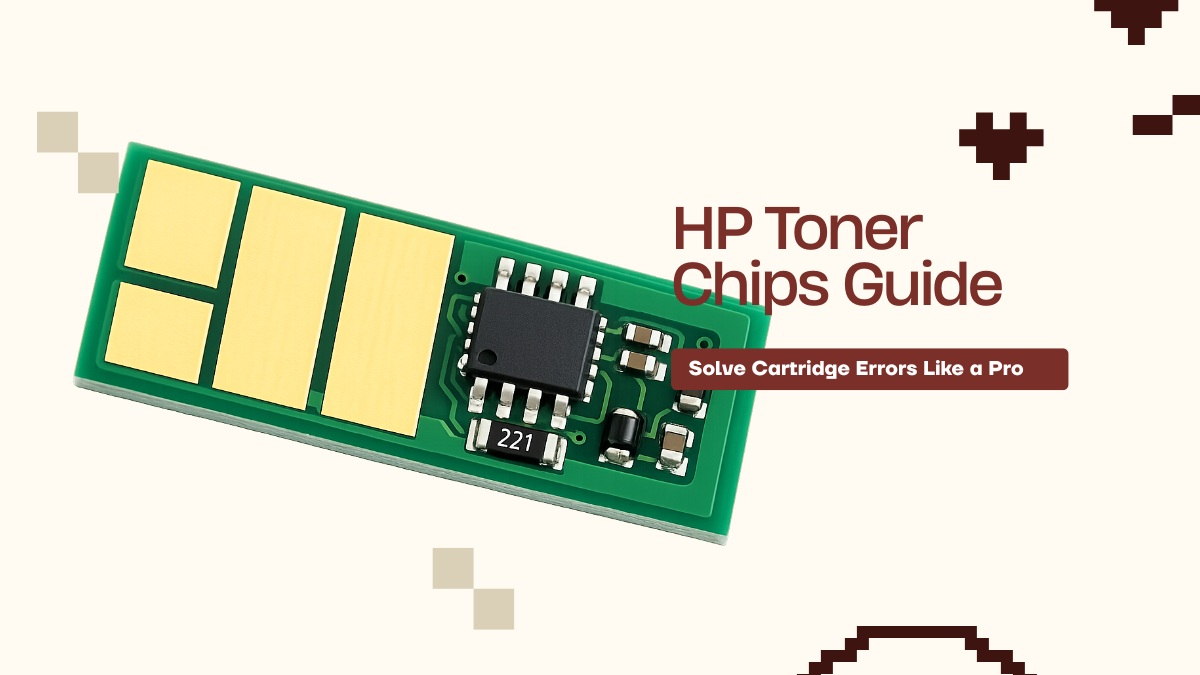
HP printers are reliable until a tiny chip stops everything. If you’ve ever seen a “low toner” message on a full cartridge or a printer refusing to print, the issue often lies in the HP toner chips, not the toner itself. These small chips play a big role in how your printer functions, yet most users don’t fully understand them.
Whether you’re a home user, office worker, or small business owner, dealing with chip-related errors can be frustrating and confusing especially if you’re still wondering what is a laser printer toner and how it works with your printer. The good news? You don’t need to be a technician to fix it. With the right guidance, HP toner chip replacement can be quick, simple, and cost-effective.
In this article, you’ll learn:
- What an HP toner chip is and how it works
- Why toner chips need to be replaced
- Signs your HP toner chip is failing
- Step-by-step HP toner chip replacement process
What Is a Chip for an HP Toner?
An HP toner cartridge chip is a small electronic board attached to the toner cartridge, usually located on the side or front. It fits into a dedicated slot that connects directly with the printer, enabling communication between the cartridge and the device. This connection allows the printer to detect the cartridge, track toner levels, and ensure proper operation, making the chip an essential component for smooth printing. It is one of the key HP printer chips. Without it, the printer may not recognize the cartridge.
What does an HP toner chip do in a printer?
The role of the HP toner chips is to connect the cartridge with the printer. They perform these functions:
- Track printed pages
- Monitor toner levels
- Show alerts like “low toner”
- Verify cartridge compatibility
Toner chip vs drum chip – key differences explained simply
| Feature | Toner Chip | Drum Chip |
|---|---|---|
| Purpose | Controls toner usage | Controls the imaging drum |
| Function | Tracks toner levels and cartridge status | Monitors drum for print quality |
| Printing Role | Ensures proper toner supply | Transfers toner onto paper |
| Control Focus | Cartridge control | Imaging unit control |
Why every modern HP toner cartridge has a chip
All modern cartridges use HP toner chip for control and tracking.
Reasons include:
- Accurate toner monitoring
- Cartridge authentication
- Print quality control
- Firmware-based restrictions
How Do HP Toner Chips Work? (Simple Explanation for Users)
These chips control how your printer communicates with the toner cartridge. Many printer toner cartridge problems happen because of a faulty chip, not the toner itself. So, here is how an HP Toner chip works:
How the toner chip communicates with your printer
An HP toner cartridge chip sends information like cartridge type and toner status to the printer. The printer reads this before allowing printing. If the chip fails, printing stops. Proper installation ensures smooth operation and is key when performing HP toner chip replacement.
How HP toner chips track toner levels and page count
These chips monitor how much toner remains and the number of pages printed. When the chip reaches its limit, the printer may show low toner or stop printing. Knowing this helps users understand how to replace HP toner chip correctly.
Why printers stop printing when the chip says “empty”
HP printers rely on HP printer chips to allow printing. If the chip reports empty, the printer stops even if toner is available. In such cases, HP toner chip reset is necessary to resume printing.
How firmware updates affect HP chips
Firmware updates can block older HP toner chips, causing the printer not to recognize the cartridge. Replacing the chip restores normal function and prevents printer toner cartridge problems.
Why Does an HP Toner Chip Need to Be Replaced?
HP toner chips track toner levels and page counts. Even with toner inside, a worn-out chip can stop printing. Many printer toner cartridge problems are caused by the chip, not the toner. Knowing when to do HP toner chip replacement keeps printing smooth.
1. Chip reaches page limit (even if toner is still inside)
Each HP toner cartridge chip counts pages. When the limit is reached, it signals the printer the cartridge is empty. Replacing the chip restores printing.
2. Printer shows “low toner” or “replace cartridge” message
If HP printer chips report low toner, the printer may show “low toner” or “replace cartridge” messages, even if full. Replacing the chip fixes this if resetting it will not work.
3. Firmware blocking old or compatible chips
Firmware can block older or third-party HP toner chip, stopping the printer. HP toner chip replacement or an updated chip resolves this issue.
4. Using compatible or refilled toner cartridges
Refilled or compatible cartridges need matching HP toner chips. Replacing the chip allows proper tracking, avoids errors, and reduces printer toner cartridge problems.
Signs Your HP Toner Chip Needs Replacement
These chips control printing, toner levels, and page counts. Even if your cartridge is full, a faulty chip can trigger toner cartridge problems. Knowing the signs helps you decide on replacement before printing is interrupted.
1. Printer not recognizing the cartridge
If your printer doesn’t detect the cartridge, the HP toner chip may be faulty or misaligned. This is a clear signal that HP toner chip replacement or proper installation is needed.
2. “Low toner” message even with a full cartridge
A persistent “low toner” warning often points to worn-out HP printer chips. Replacing the chip restores accurate toner tracking and prevents unnecessary cartridge changes.
3. Printer refusing to print
When the printer stops printing despite having toner, the HP toner chip is likely the cause. Performing how to replace HP toner chip correctly solves this issue and restores normal printing.
4. Error messages after installing a new cartridge
New cartridges may trigger errors if the HP toner chip is missing, incompatible, or damaged. Timely HP toner chip replacement ensures seamless printer operation and avoids additional toner cartridge problems.
HP Toner Chip Replacement: Step-by-Step Guide (DIY)
Replacing HP toner chips can solve many printer toner cartridge problems and extend cartridge life. Whether your printer shows “low toner” incorrectly or won’t print, knowing how to replace HP toner chip yourself saves time and cost. Here are the complete steps:
When you should replace your HP toner chip
Replace chips if the printer shows low toner, doesn’t recognize the cartridge, or gives error messages after installing a new cartridge. Firmware updates or using compatible or refilled cartridges also require HP chip replacement.
Tools needed for HP toner chip replacement
- Chip collector or removal tool designed for HP printer chips
- Tweezers (optional)
- Cutting pliers (optional)
- Soft cloth (for handling the chip safely)
Step-by-step: how to remove HP toner chip safely
- Turn off the printer and remove the cartridge.
- Use a chip collector on the old HP toner chip.
- Rotate the collector handle to release the chip.
- Carefully remove the chip and clean any plastic remnants.
Step-by-step: how to install HP toner chip correctly
- Align the HP toner chip with the slot on the new cartridge.
- Insert gently, ensuring it fits securely.
- Press until the chip clicks or is flush with the cartridge surface.
- Reinstall the cartridge and turn on the printer to test.
Correct chip direction and placement tips
- Always match the chip’s contacts to the printer’s contact points.
- Check orientation markings on the HP toner chip.
- Avoid forcing the chip; incorrect placement can prevent the printer from recognizing it.
- Follow manufacturer guidance if using compatible cartridges to prevent toner cartridge problems.
How to Transfer HP Toner Chips to a New Cartridge
Transferring HP toner chips is essential when using no chip cartridges or refilled toner cartridges. Many HP printer chips store toner level and usage data, so simply installing a new cartridge may trigger printer problems. Learning how to replace HP toner chip ensures your printer reads the cartridge correctly and avoids unnecessary errors.
When chip transfer is required (No Chip Cartridges)
Chip transfer is needed when your new toner cartridge comes without a chip. No Chip cartridges save cost but require transferring the original HP toner cartridge chip to the new cartridge. Without this, the printer may not recognize the cartridge or will display “low toner” even if the toner is full.
Step-by-step chip transfer process (3–5 minutes method)
- Prepare your tools: chip collector, tweezers, or pliers.
- Remove the used HP toner chip from the empty cartridge using the chip collector.
- Clean any leftover plastic from the chip.
- Align the chip on the new cartridge and insert carefully.
- Ensure the chip fits flush and is secure.
- Install the cartridge in your printer and check for recognition.
Common mistakes to avoid during chip transfer
- Inserting the chip upside down or backward.
- Forcing the chip into the slot, which can damage contacts.
- Mixing chips from different color cartridges.
- Using a damaged or worn-out HP toner cartridge chip.
What happens if you install the chip incorrectly
Incorrect chip placement can lead to:
- Printer not recognizing the cartridge
- “Low toner” warnings despite full toner
- Refusal to print
- Error messages that prevent printing
Final Thoughts
In conclusion, HP toner chips are essential for your printer to track toner levels, communicate status, and ensure smooth printing. Even a full cartridge may not work if the chip fails, making HP toner chip replacement a critical task for home users, small businesses, and offices. By recognizing the signs like low toner messages, printer errors, or cartridges not recognized you can take action before printing is disrupted. Knowing how to replace HP toner chip or transfer it from a compatible cartridge saves time and money. Always handle the HP toner cartridge chip carefully, follow the correct direction, and use proper tools. Avoid common mistakes to prevent printer toner cartridge problems and unnecessary trips to replace drum on printer. Regular maintenance and timely chip replacement extend your printer’s life and keep prints consistent. With the right steps, even beginners can manage chips confidently and avoid interruptions.
Start practicing these tips to ensure your printer always performs at its best.
Frequently Asked Questions
1. Will my printer work if the toner cartridge is full?
A full cartridge does not guarantee printing. These chips control the process, and if the chip reports “empty,” the printer may stop even when toner is still inside.
2. Do I really need HP toner chip replacement?
HP chip replacement becomes necessary when the printer cannot detect the cartridge or keeps showing incorrect toner levels. Replacing the chip restores proper communication and printing.
3. Can I use the same HP toner chip in any printer?
HP printer chips are designed for specific models, regions, and firmware versions. Using an incompatible chip can cause errors and prevent the printer from recognizing the cartridge.
Related Articles
What Is a Laser Printer Toner?
Printer Toner Cartridge Problems: Reasons And Solutions
When to Replace Drum on Printer: Signs & Tips You Should Know