
Laser Printer Vertical White Lines: Fix Streaks & Restore Quality
| Apr 03, 2026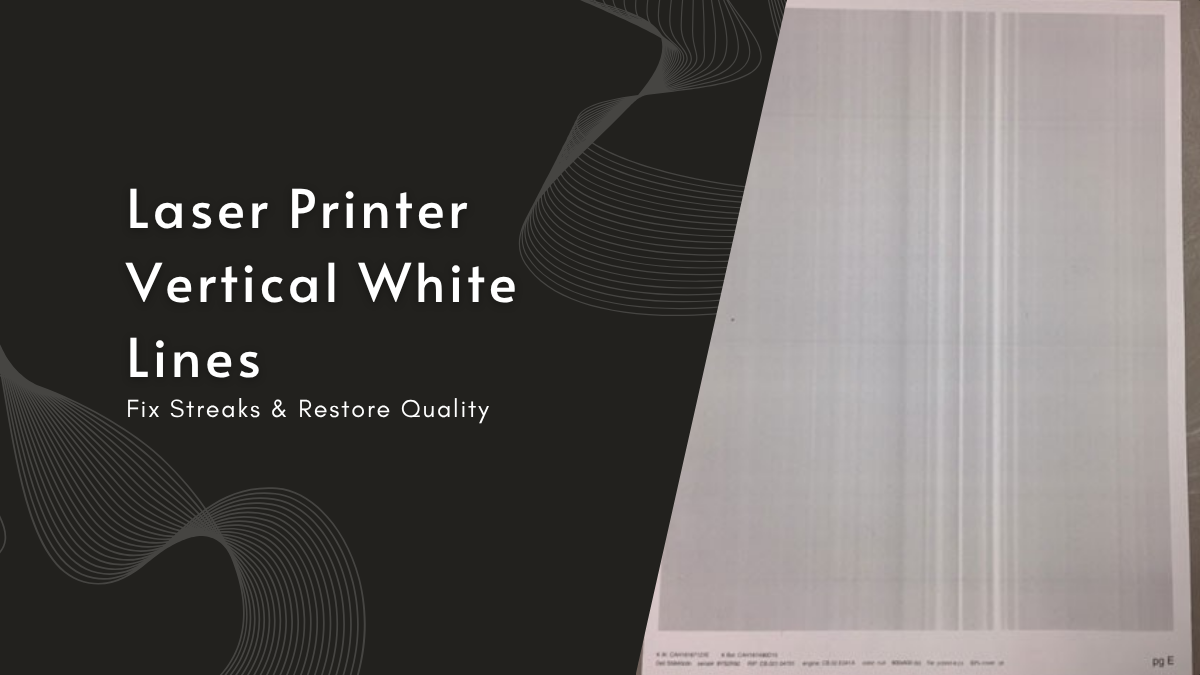
Few things are more frustrating than printing an important document only to see laser printer vertical white lines ruining the entire page. One moment, your printer works perfectly, and the next, it starts producing uneven, streaky prints that look unprofessional and incomplete. If you’re wondering, “Why is my laser printer printing white lines?”, this is one of the most common issues users face.
The good news is that in most cases, this problem is not as serious (or expensive) as it seems. From simple cleaning fixes to minor part adjustments, many causes of laser printer white lines can be resolved at home without technical expertise. Understanding the root cause is the first step toward restoring clean, sharp print quality.
In this guide, you’ll learn:
- Why is your laser printer printing lines
- The most common causes behind this issue
- Step-by-step methods to fix it
- How to prevent white lines from appearing again
Why Does My Laser Printer Print White Lines?
Laser printer vertical lines are blank spaces running from the top to the bottom of the page. These lines stay consistent across prints. Laser printer white lines can also appear in different forms depending on the issue.
- Thin straight gaps → toner not reaching paper
- Repeating lines → drum unit issue
- Faded areas → uneven toner distribution
You may also notice laser printer white streaks, which look faded instead of fully blank. In some cases, laser printer horizontal white lines appear due to different internal issues.
When Do Laser Printer White Lines Usually Appear?
Laser printer vertical lines can appear in different situations:
- On photos: more visible on solid colors
- On documents: lines cut through text
- Occasionally: may appear on some pages only
- After toner replacement: due to uneven toner distribution
- During heavy printing: internal parts may need cleaning
What Causes Laser Printer Vertical White Lines?
Laser printer vertical lines occur when toner fails to transfer evenly onto paper. Most cases of printer printing lines are caused by internal issues rather than external problems. Common causes include worn parts, dirty components, or toner issues.
1. Dirty or Damaged Drum Unit
A dirty or scratched drum leaves gaps where toner doesn’t reach, causing laser printer white streaks. Signs include repeated blank lines and faint areas on text or images. Cleaning or replacing the drum usually fixes the issue.
2. Toner Cartridge Problems (Low, Uneven, or Faulty)
What is a laser printer toner? It’s the powder that forms the print. Low or uneven toner causes laser printer white lines. Recently replaced cartridges can also produce gaps. Shaking the cartridge or using a genuine replacement resolves most issues. This is a common source of toner cartridge problems.
3. Dirty Corona Wire or Transfer Issues
A dirty corona wire blocks toner transfer, causing laser printer vertical white lines and sometimes laser printer horizontal lines. Cleaning the wire restores proper toner flow.
4. Blocked Laser Glass or Internal Dust
Dust or debris on the laser glass blocks toner, causing vertical or horizontal lines. Cleaning the glass removes the obstruction and restores print clarity.
5. Paper Quality or Moisture Problems
Low-quality or damp paper prevents even toner adhesion. This can create laser printer streaks and vertical white lines. Use fresh, quality paper for best results.
6. Internal Parts or Hardware Wear
Worn rollers, fuser units, or transfer belts can produce laser printer vertical lines and uneven prints. Replacing or maintaining these parts fixes the problem.
How to Fix Laser Printer Vertical White Lines (Step-by-Step Guide)
If your printer shows printer printing lines or gaps, you can usually fix the problem without a technician. Most cases of laser printer white lines are caused by dirty components, low toner, or minor obstructions. Following a clear step-by-step approach can restore print quality, prevent laser printer white streaks, and stop laser printer horizontal lines from appearing. Here’s how to fix it efficiently.
Step 1 – Run the Printer Cleaning Cycle
Most printers have a built-in cleaning function. Running this cycle removes loose toner and dust that cause laser printer vertical lines. Repeat the cycle 2–3 times if necessary. This simple step often resolves minor gaps and streaks.
Step 2 – Clean the Drum Unit Properly
The drum unit transfers toner to paper. Remove it carefully and inspect for scratches, dust, or toner buildup. Match the drum surface to a test print to locate problem areas. Use a lint-free cloth or recommended swab to clean gently. Avoid touching the drum with fingers to prevent permanent damage.
Step 3 – Fix Toner Cartridge Issues
Laser printer toner is a fine powder used to create images and text. Low or uneven toner causes laser printer white lines. Remove the cartridge, gently shake side-by-side to distribute toner, and check for defects. Replace with a genuine cartridge if lines persist. Many printer toner cartridge problems are resolved this way.
Step 4 – Clean the Corona Wire
The corona wire ensures toner sticks to paper. Slide the cleaning tab gently from side to side to remove dust. Returning the tab to its correct position prevents horizontal white lines from returning.
Step 5 – Clean the Laser Glass (Important Step)
Dust or debris on the laser glass blocks toner and causes lines. Locate the glass inside the printer and wipe gently with a dry cloth. Do not use liquids. Cleaning the glass eliminates most recurring laser printer streaks.
Step 6 – Check for Obstructions Inside the Printer
Remove any debris, leftover packaging, or foreign material that may block toner transfer. Even small particles can create laser printer vertical white lines.
Step 7 – Use Proper Paper for Better Print Quality
Low-quality or damp paper prevents toner from adhering evenly. Use fresh, high-quality paper to avoid laser printer white lines. Proper paper ensures smooth prints every time.
Step 8 – Print a Test Page and Align Printer
After cleaning and adjustments, print a test page to confirm the issue is fixed. Use alignment settings if needed. Proper alignment reduces laser printer vertical lines and prevents future streaks.
How to Prevent Laser Printer White Lines in the Future
Preventing laser printer vertical white lines is easier than fixing them. Most print issues, including laser printer white streaks, are caused by dirt, poor toner handling, or low-quality paper. Regular care keeps prints sharp and avoids printing lines in the future.
1. Regular Cleaning and Maintenance
Clean the drum, corona wire, and laser glass regularly. This prevents toner buildup and dust, reducing the chance of laser printer vertical lines. A few minutes of maintenance each month keeps prints consistent.
2. Proper Toner Handling
Handle printer toner cartridges carefully, shake gently before installation, and use genuine replacements. This avoids printer toner cartridge problems that can cause laser printer white lines or streaks.
3. Using Quality Paper
Use fresh, high-quality paper designed for laser printers. Low-quality or damp paper causes uneven toner adhesion, leading to laser printer vertical white lines. Proper paper ensures clear, consistent prints.
4. Avoiding Dust Buildup
Keep the printer area clean and free from dust. Dust inside the printer can cause laser printer horizontal white lines and block toner flow. Regularly inspect internal parts to maintain print quality.
When Should You Call a Technician?
Some issues require professional help. Knowing when to call a technician saves time and prevents damage.
- Issue persists after all steps: If the laser printer’s vertical lines remain after cleaning and toner checks, a professional inspection is needed.
- Complex internal faults: Problems with the fuser, rollers, or transfer belt may need replacement.
- Avoiding unnecessary repair costs: A technician can correctly diagnose the issue and prevent repeated fixes or part replacements.
Conclusion
Laser printer vertical white lines are common but usually easy to fix. Most cases result from toner issues, dirty components, or minor obstructions rather than major printer faults. Simple steps like running the cleaning cycle, inspecting the drum, checking toner cartridges, cleaning the corona wire and laser glass, and using proper paper can restore print quality quickly.
Preventing problems is just as important. Regular maintenance, careful toner handling, quality paper, and keeping the printer dust-free help avoid laser printer white lines in the future.
Following these practices ensures your printer produces clean, professional prints and reduces the need for costly repairs.
Frequently Asked Questions
1. Does seeing white lines mean my printer is broken?
Most cases of laser printer vertical white lines occur due to minor issues such as dirty components, uneven toner, or small obstructions. These problems are usually easy to fix without replacing any major hardware.
2. Will replacing my printer fix white lines?
Replacing the printer is rarely necessary. Cleaning the drum, corona wire, and laser glass, or replacing a faulty toner cartridge, often resolves laser printer lines and restores print quality quickly.
3. Can I use any toner cartridge?
Using poor quality non-genuine or incompatible cartridges can create printer toner cartridge problems, leading to laser printer white streaks or vertical lines. Choosing the manufacturer-recommended toner ensures even printing and reduces errors.
4. Do white lines only appear on old printers?
White lines can occur on printers of any age, whether new or old. They usually happen because of dust buildup, uneven toner distribution, or improper paper handling, not the age of the printer.
5. Does paper quality affect white lines?
Paper quality has a direct effect on print results. Low-quality, damp, or textured paper can prevent toner from adhering properly, causing laser printer horizontal white lines, streaks, or gaps, while high-quality paper ensures consistent prints.
Related Articles
Printer Printing Lines: Your Ultimate Troubleshooting Guide
What Is a Laser Printer Toner?