
Printer Not Recognizing Ink Cartridge? 8 Easy Fixes to Try
| Sep 30, 2026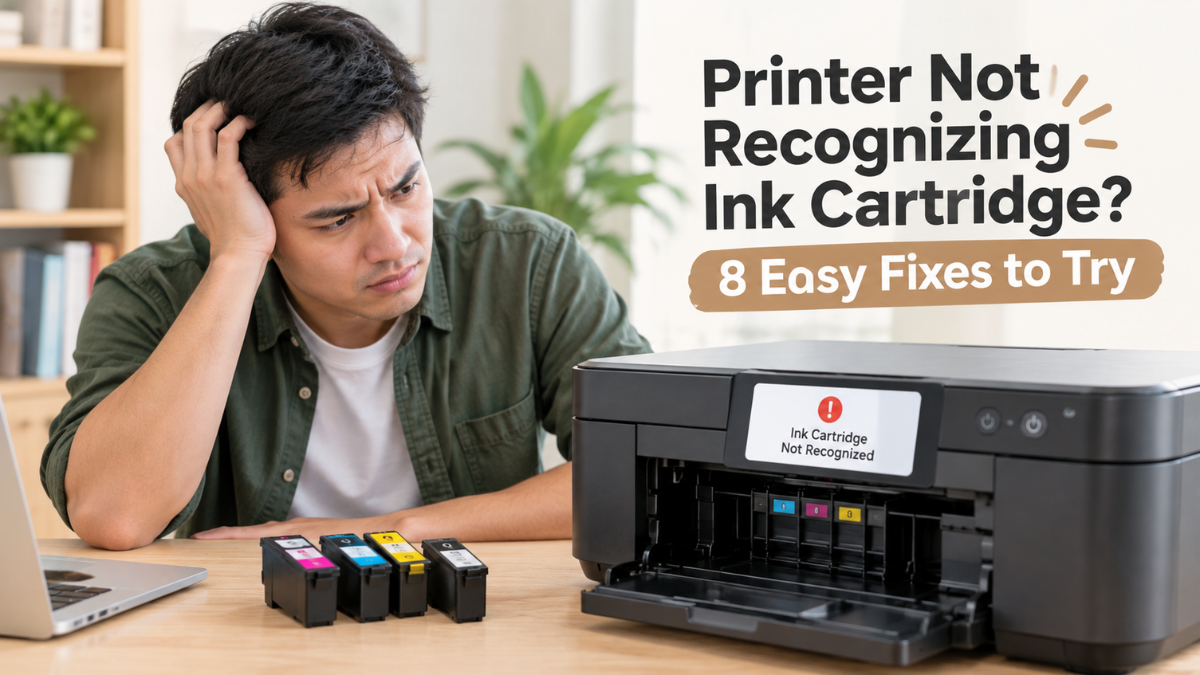
Installing a new ink cartridge should be simple, but sometimes your printer has other plans. If you’re dealing with a printer not recognizing ink cartridge issue, you may see messages such as “Ink Cartridge Not Recognized,” “Cartridge Error,” or “No Ink Detected.” Even when the cartridge looks properly installed, your printer may still refuse to detect it—and that can prevent you from printing important documents.
If you’re experiencing an ink cartridge not recognized error, don’t replace the cartridge just yet. Several simple issues, such as improper installation, dirty contacts, compatibility problems, or a printer that needs to be restarted, can cause the problem.
This guide walks you through eight easy fixes you can try at home before buying another cartridge or taking your printer to a repair shop. If you’re also dealing with situations where your printer won’t print, these troubleshooting steps may help you get back to printing.
Why Is My Printer Not Recognizing Ink Cartridge?
Before trying the fixes, it helps to understand why the problem happens.
A printer may fail to detect an ink cartridge for several reasons. The cartridge may not be seated correctly, protective tape may still be covering part of it, or the electrical contacts may be dirty. In other cases, the cartridge may not be compatible with your printer model.
Compatible and remanufactured cartridges can also display recognition errors. This does not necessarily mean the cartridge is defective. Some printers use cartridge chips or other identification features to determine whether a cartridge is installed.
Fortunately, many common printer problems have simple solutions. Try the following fixes one at a time.
8 Easy Fixes for an Ink Cartridge Not Recognized Error
1. Remove and Reinstall the Ink Cartridge
Start with the simplest solution: remove the cartridge and install it again.
Turn on your printer and open the cartridge access area. Carefully remove the cartridge, then check that it is the correct cartridge for the printer.
Reinsert it firmly into the appropriate slot. You should generally hear or feel a click when the cartridge is properly seated.
Close the printer cover and wait a few moments. Your printer may take some time to check the cartridge before displaying its status.
Tip: Avoid forcing the cartridge into place. If it does not fit easily, remove it and check that you are using the correct slot and cartridge.
2. Check and Remove the Protective Tape
New cartridges often come with protective tape, plastic, or other packaging materials that must be removed before installation.
If this material is still covering the cartridge’s ink outlet or electrical contacts, your printer may not be able to detect or use the cartridge properly causing the printer not recognizing ink cartridge issue.
Remove the protective material according to the cartridge’s instructions. Be careful not to touch the metal contacts or other sensitive areas unnecessarily.
If you’ve just installed a brand-new cartridge and immediately received an error, this is one of the first things worth checking.
3. Make Sure You Have the Correct Cartridge
A cartridge can physically fit into a printer while still being the wrong cartridge for that particular model.
Check the cartridge number printed on the packaging or cartridge itself. Then compare it with the cartridge number recommended for your printer.
Pay attention to your printer’s exact model number, as similar printer models may use different cartridges.
This is particularly important when purchasing compatible or remanufactured cartridges. Look for products specifically listed as compatible with your printer model.
If you regularly use third-party cartridges, you may also want to research printers that allow 3rd party ink to understand which printer models are designed to work with alternative cartridge options.
4. Clean the Cartridge Contacts
Dirty electrical contacts can sometimes prevent your printer from communicating properly with the cartridge.
First, turn off the printer and unplug it. Remove the cartridge carefully.
Look for the small metal contact areas on the cartridge. If they appear dusty or dirty, gently wipe them with a clean, dry, lint-free cloth.
Avoid using excessive moisture or household cleaning products. Do not scratch the contacts, and allow everything to remain completely dry before reinstalling the cartridge.
Once the cartridge is clean and dry, reinstall it and turn the printer back on.
5. Restart Your Printer
Sometimes a simple restart can clear a temporary printer not recognizing ink cartridge error.
Turn off the printer using its power button. If possible, unplug it from the electrical outlet and wait for about 30 seconds.
Plug it back in and turn it on. Wait until the printer finishes starting up before checking the cartridge status.
You can also restart your computer if the cartridge error appears through the printer software rather than directly on the printer’s display.
This quick step is worth trying because it does not require tools, replacement parts, or additional supplies.
6. Check the Printer’s Cartridge Status
If your printer still cannot recognize the cartridge, check its ink or cartridge status through the printer’s control panel or software.
Look for messages such as:
- “Ink Cartridge Not Recognized”
- “Cartridge Error”
- “No Ink Detected”
- “Check Cartridge”
- “Replace Cartridge”
The exact wording varies between printer brands and models.
If the printer identifies a specific cartridge, remove and reinstall only that cartridge first. This can help you determine whether the problem is limited to one cartridge or affects the entire set.
If you recently replaced several cartridges, checking them individually can also make troubleshooting easier.
7. Check for Printer or Cartridge Compatibility Issues
If you’ve followed the basic steps and the printer won’t recognize ink cartridge despite being installed correctly, compatibility may be the issue.
This can happen with compatible, remanufactured, or third-party cartridges, particularly when the cartridge’s identification system does not communicate correctly with the printer.
Check the cartridge manufacturer’s compatibility information and make sure it specifically lists your printer model.
You may also want to check whether your printer recently received a firmware or software update. In some situations, changes to printer software can affect how third-party cartridges are detected.
If you use compatible cartridges regularly, check the manufacturer’s recommendations before updating printer firmware.
8. Try Another Cartridge or Contact Support
If none of the previous solutions work, the cartridge itself may have a problem—or your printer may require further troubleshooting.
If you have another known-compatible cartridge available, you can try installing it. If the second cartridge is recognized, the original cartridge may be the source of the problem.
However, if your printer continues to display an error with multiple compatible cartridges, the printer itself may need attention.
At this point, check your printer manufacturer’s support resources for model-specific instructions. If the problem persists, contacting customer support or a qualified printer technician may be the next step.
What If the Printer Still Cannot Recognize Ink Cartridge?
If you’ve tried all eight fixes and your printer still cannot recognize ink cartridge, avoid repeatedly removing and reinstalling it. Doing so may not solve the underlying issue and could potentially damage the cartridge or its contacts.
Instead, review the cartridge model number, printer compatibility, and any error message shown on the printer.
For compatible or remanufactured cartridges, check the seller’s troubleshooting and replacement policy. A reputable cartridge supplier should be able to help determine whether the cartridge is compatible or needs to be replaced.
Remember that an ink cartridge not recognized message does not automatically mean that you need to buy another cartridge. Checking installation, contacts, compatibility, and printer settings first can save you time and money.
Conclusion
A printer not recognizing ink cartridge error can be frustrating, especially when you need to print something quickly. However, the problem does not always mean that the cartridge is defective.
Start with the easiest solutions: reinstall the cartridge, check for protective tape, confirm compatibility, clean the contacts, and restart the printer. If you’re dealing with an ink cartridge not recognized after trying these steps, checking the cartridge and printer compatibility or contacting support may help identify the next solution.
With a few simple checks, you may be able to resolve the problem at home without immediately purchasing another cartridge or taking your printer in for repair.
Frequently Asked Questions
1. Why is my printer not recognizing ink cartridges?
A printer may fail to recognize a cartridge because it is incorrectly installed, protective material has not been removed, the cartridge contacts are dirty, or the cartridge is incompatible with the printer. Restarting the printer and reinstalling the cartridge can also resolve temporary errors.
2. What should I do if my printer cannot detect ink?
If your printer cannot detect ink, remove and reinstall the cartridge, check that all protective tape has been removed, and clean the cartridge contacts carefully. You should also confirm that the cartridge is compatible with your printer model.
3. Why does my printer say “Ink Cartridge Not Recognized” when the cartridge is new?
A new cartridge may not be recognized if it was installed incorrectly, protective tape remains in place, or the cartridge is not compatible with the printer. Compatible and remanufactured cartridges may also require additional troubleshooting depending on the printer model.
4. Can a printer recognize a compatible or remanufactured cartridge?
Yes, many printers can work with compatible or remanufactured cartridges. However, compatibility varies by printer model and cartridge. Always check that the cartridge is specifically designed for your printer.
5. Should I replace the cartridge if my printer does not recognize it?
Not necessarily. Before replacing it, try reinstalling the cartridge, removing protective material, cleaning the contacts, restarting the printer, and checking compatibility. If the problem continues, try another known-compatible cartridge or contact the cartridge supplier for assistance.
Related Articles
Printer Won’t Print: Tips to Fix the Problem Easily!
Printers That Allow 3rd Party Ink: Buyer’s Guide to Compatible Models
Common Printer Problems And Solutions
HP Printer Not Recognizing Ink Cartridges? Steps to Fix It Fast