
Why Is My Printer Printing Wrong Colors? A Troubleshooting Guide
| Oct 08, 2026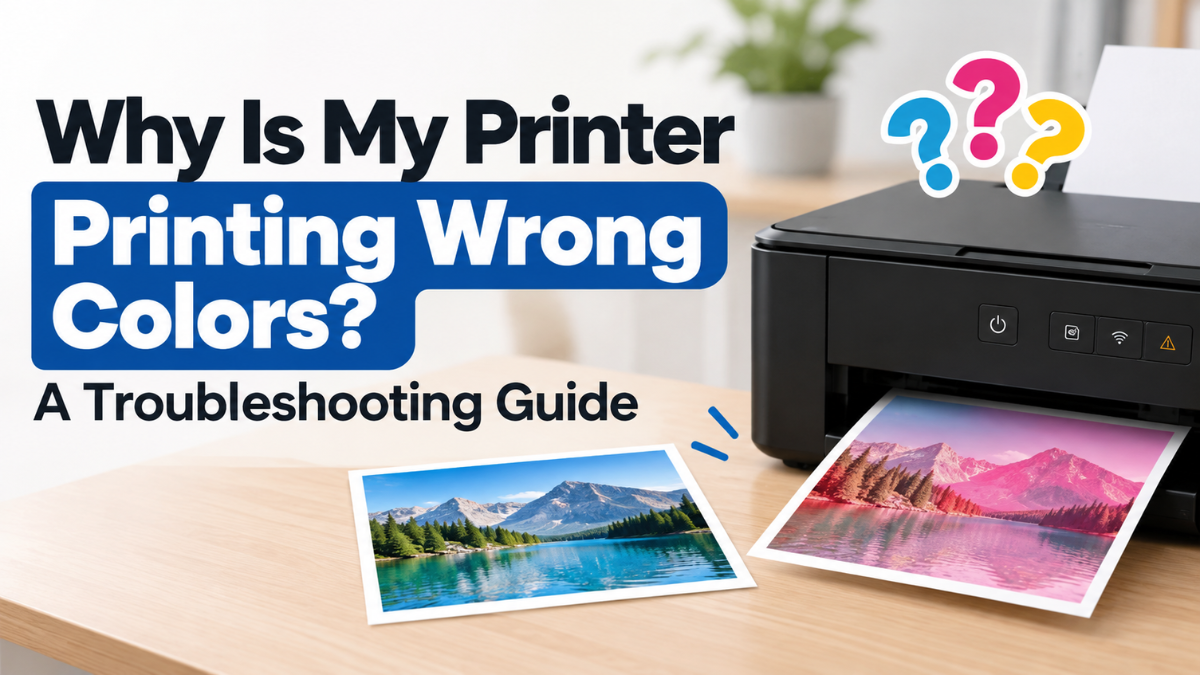
Have you noticed that your printer is printing wrong colors even though everything looks fine on your computer or phone? Maybe your photos have a strange color tint, black looks gray, or blue suddenly comes out purple. A printer wrong color problem can be frustrating, especially when you need accurate prints for school, work, or business.
The good news is that incorrect colors don’t always mean your printer needs to be replaced. Issues such as low ink, clogged printheads, incorrect settings, or the wrong color ink in printer can affect how your documents and photos look.
In this guide, we’ll explain the most common reasons for incorrect colors and walk you through simple troubleshooting steps. These tips can also help you on how to improve print quality without immediately buying a new printer or cartridge.
Why Is My Printer Printing Wrong Colors?
When a printer produces colors that look different from what you expected, the problem is usually related to the ink, printhead, printer settings, or the image or document you’re printing.
Inkjet printers typically use several ink colors to create a wide range of shades. If one color is running low or isn’t being applied properly, the printer may compensate by using other colors. This can result in prints that look too warm, too cool, faded, or completely different from the original.
Before replacing anything, try the troubleshooting steps below:
1. Check the Ink Levels
One of the easiest things to check is your printer’s ink level.
When a cartridge is running low, certain colors may become noticeably lighter or change in appearance. For example, if cyan ink is nearly empty, blue and green shades may not print correctly.
Open your printer’s software or control panel and check the estimated ink levels. Some printers may also display a warning when a cartridge is low.
If one color is significantly lower than the others, replacing that cartridge may solve the problem.
Keep in mind that an ink-level reading isn’t always perfectly accurate. If your printer is producing unusual colors even though the levels appear sufficient, continue with the next steps.
2. Make Sure You Installed the Correct Ink Cartridge
Have you recently replaced an ink cartridge?
If so, double-check that you installed the correct cartridge in the correct slot. Installing the wrong color ink in printer can cause major color problems.
For example, placing a cyan cartridge where the magenta cartridge should go can cause your printed colors to look completely different.
Remove the affected cartridge and compare its label with your printer’s instructions. Make sure each cartridge is installed securely in its designated position.
If you recently changed several cartridges, checking each one is especially important.
3. Check If the Ink Cartridge Is Empty
Sometimes the printer may report that a cartridge has ink remaining when it is actually unable to produce a usable amount of ink.
If one color is missing from your prints, check whether the cartridge needs to be replaced.
You can also inspect the cartridge for obvious issues, such as leakage or damage. If you’re using a refillable or compatible cartridge, make sure it is properly installed and recognized by the printer.
A cartridge that isn’t supplying ink correctly can make an otherwise healthy printer produce inaccurate colors.
4. Clean the Printhead
A clogged printhead is another common reason for incorrect colors.
The printhead contains tiny openings that spray ink onto the paper. When these openings become partially blocked, some colors may not print properly.
For example, your printer may use cyan, magenta, and yellow to produce a particular shade. If one color isn’t coming through because of a clog, the resulting color can look noticeably different.
Most inkjet printers have a built-in Printhead Cleaning or Head Cleaning option. You can usually find it in the printer’s maintenance settings.
Run a cleaning cycle and then check your print quality. You may need to repeat the process once or twice if the problem persists.
Avoid running many cleaning cycles back-to-back because the printer uses ink during the cleaning process.
If cleaning doesn’t help, you may need to follow a more detailed guide to fix a clogged printhead.
5. Print a Test Page
Printing a test page can help determine whether the problem is caused by the printer or by the document you’re trying to print.
A printer test page usually contains different lines, patterns, and colors. Look for missing sections, broken lines, or colors that don’t appear correctly.
If a color is missing from the test page, the problem is likely related to the ink cartridge or printhead.
If the test page looks correct but your photos or documents still have incorrect colors, the issue may be related to your computer, application, image, or printer settings.
This simple test can save you from replacing cartridges unnecessarily.
6. Check Your Printer’s Color Settings
Printer settings can have a significant effect on how colors appear.
Look at the print settings on your computer before sending the document to your printer. Depending on your printer and software, you may see options related to:
- Color or black-and-white printing
- Paper type
- Print quality
- Color adjustment
- Brightness and contrast
- Photo printing
Make sure the printer is set to Color if you want a color print.
Also check the selected paper type. Choosing a setting intended for plain paper when you’re using glossy photo paper, for example, can affect the final appearance.
If you previously changed advanced color settings, try returning them to their default values and print again.
7. Choose the Correct Paper Type
Believe it or not, the paper you’re using can change how your colors look.
Different types of paper absorb ink differently. Plain copy paper may produce softer or less vibrant colors than photo paper.
If you’re printing photos, select the appropriate photo-paper setting in the printer menu. Likewise, make sure the physical paper matches the paper type selected in your print settings.
Using the correct combination of paper and settings can make a noticeable difference in color accuracy.
8. Check the Image or Document You’re Printing
If your printer’s test page looks normal, the problem may not be with the printer itself.
Try printing another image or document. If the second file prints correctly, the original file may have unusual color settings or formatting.
You can also open the image in another application and print it again. This helps determine whether the issue is specific to the software you’re using.
Remember that colors on a screen can also look different from printed colors. Your monitor uses light to display colors, while your printer creates colors using ink.
Because of this, a printed photo may not look exactly the same as it does on your screen.
9. Update or Reinstall the Printer Driver
If your printer suddenly starts producing incorrect colors after working normally for a long time, software could be part of the problem.
Your computer uses a printer driver to communicate with the printer. If the driver becomes outdated or corrupted, printing problems can occur.
Check the printer manufacturer’s official support website for the latest driver available for your printer model and operating system.
If you recently updated your computer and the color problem started afterward, reinstalling the printer driver may also help.
10. Try Printing From Another Device
Still dealing with a printer wrong color problem?
Try printing the same document or image from another computer, tablet, or phone if your printer supports it.
If the colors look correct from another device, the problem may be related to the original computer’s settings or printing software.
On the other hand, if the colors are wrong regardless of which device you use, the printer, cartridges, or printhead are more likely to be responsible.
Printer Wrong Color: When To Replace Ink Cartridge
Replacing an ink cartridge shouldn’t always be your first solution. However, it may be necessary if:
- One color is completely missing.
- The cartridge is empty or nearly empty.
- The cartridge is damaged or leaking.
- The printer doesn’t recognize the cartridge.
- Cleaning the printhead doesn’t restore the missing color.
- The cartridge has been stored for a long time and the ink has dried.
Before buying a replacement, make sure you’ve identified which color is causing the problem. This can help prevent unnecessary replacements especially when experiencing printer printing wrong colors.
What If Your Printer Still Prints the Wrong Colors?
If you’ve tried the steps above and your printer printing wrong colors issue continues, there may be a hardware problem.
A damaged printhead, faulty cartridge, or internal printer issue may require professional attention. This is particularly worth considering if the printer produces the same incorrect colors on every document and test page.
Before taking the printer for repair, try one final basic check: turn it off, unplug it for a few minutes, and then restart it. Sometimes a simple restart can resolve temporary printing errors.
Final Thoughts
A printer printing wrong colors problem can be annoying, but it doesn’t necessarily mean your printer is failing. In many cases, the cause is something simple, such as low ink, a clogged printhead, incorrect cartridge placement, paper settings, or color settings.
Start with the easiest checks: inspect your ink levels, make sure you haven’t installed the wrong color ink in printer, clean the printhead, and print a test page. Then review your paper and color settings before moving on to software or hardware troubleshooting.
If you’re still experiencing a printer wrong color issue after trying these solutions, the cartridge or printhead may need replacement or professional attention. Taking a few minutes to identify the actual cause can help you avoid unnecessary expenses and get your printer producing accurate, vibrant prints again.
Frequently Asked Questions
1. Why is my printer printing wrong colors?
A printer can print incorrect colors because of low or empty ink, clogged printheads, incorrect cartridge placement, unsuitable paper settings, or incorrect color settings. Checking the ink and printing a test page are good first steps.
2. Why does my printer print a printer wrong color even when the ink levels look fine?
Ink-level readings aren’t always perfect. A cartridge may have enough ink but still have a clogged outlet or another issue preventing the ink from printing properly. Cleaning the printhead and checking the cartridge can help.
3. Can the wrong color ink in printer cause incorrect colors?
Yes. Installing the wrong color ink in printer or placing a cartridge in the wrong slot can cause severe color problems. Check each cartridge against your printer’s instructions before printing again.
4. Why do my printed colors look different from my screen?
Screens and printers create colors differently. Your screen produces colors using light, while your printer combines ink. Differences in display settings, paper, ink, and printer settings can also affect the final result.
5. Should I replace all my ink cartridges if the colors are wrong?
Not necessarily. First identify which color is affected. Check the ink levels, clean the printhead, verify the cartridge placement, and print a test page. You may only need to replace one cartridge.
Related Articles
How to Improve Print Quality: 10 Easy Tips for Better Prints
How to Tell If an Ink Cartridge Is Empty or Just Clogged